The editor at a glance
The editor has two halves: the chat on the left, where you say what should change, and your website or app on the right. Everything else sits in the bar at the top.
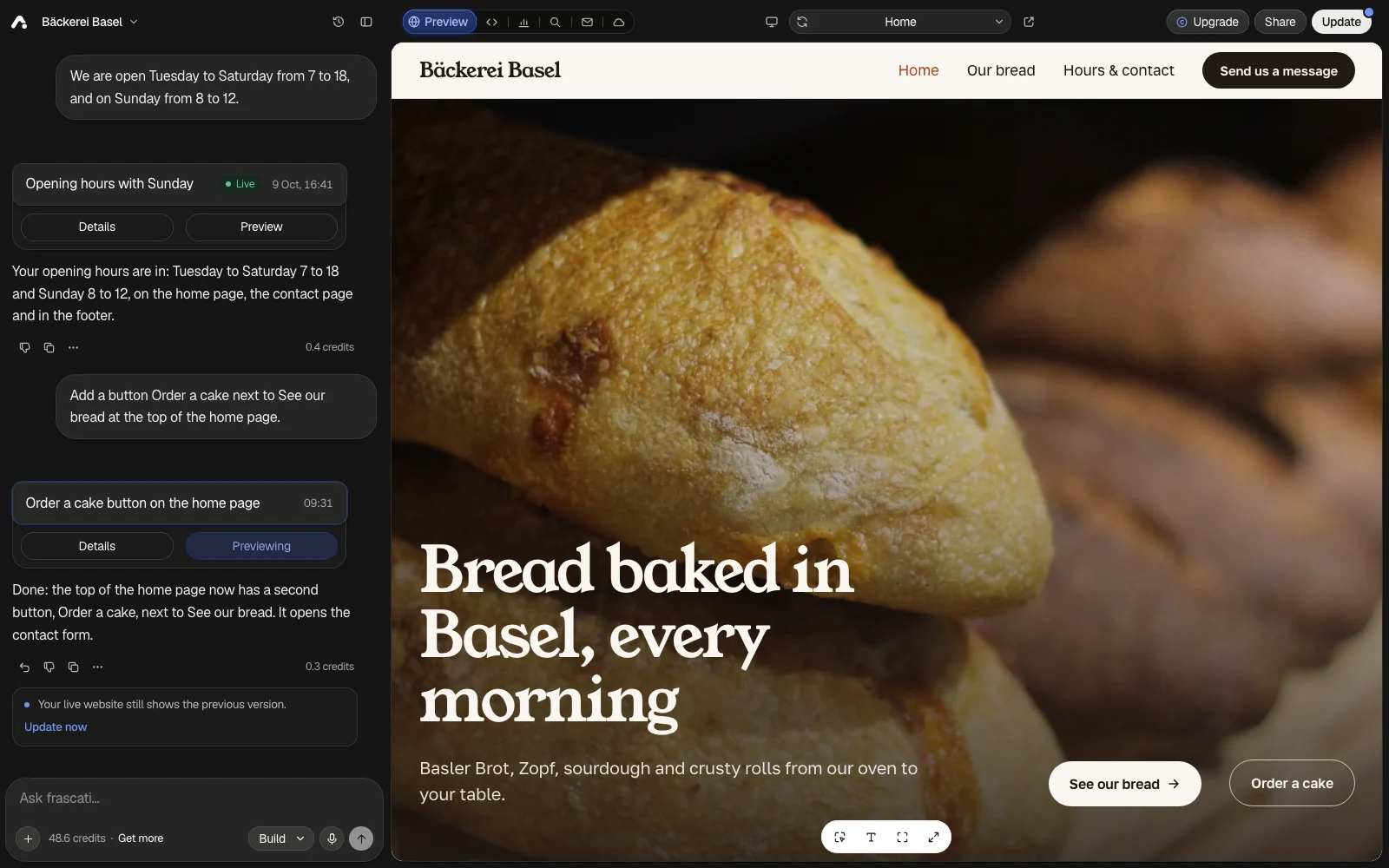
The bar at the top
- frascati mark
- Back to your dashboard.
- Project name
- Opens the project menu, see below. Next to it, Saving… and Saved show that your changes are stored.
- Clock and panel
- The clock opens Versions, see Versions, undo and restore. The button next to it hides the chat, so your website takes the whole width, and brings it back.
- Views
- Preview, Code, Visitors, SEO, Messages and Cloud, see below. A dot on Messages means new messages. A phone app has Preview, Code and Cloud.
- Screen and page
- In the preview of a website: the screen button switches between desktop, tablet and phone, the round arrow loads the preview again, the page name opens a list of all pages, and the last button opens the preview in a new tab.
- Upgrade or credits
- On wide screens. With Business, once the trial is over, your credits left; otherwise Upgrade. Both open your plan in Settings.
- Share
- Websites only: copies a link to a preview of your website. Anyone with the link can open it without an account, and search engines are asked to leave it out.
- On your phone
- Phone apps only: a QR code that opens the app on your phone. See Build your first phone app.
- Publish
- Puts your website online. Once it is, the button says Update with a blue dot while your latest changes are not live, and Published when they are. While the AI is writing, it waits until the answer is done. For a phone app, see Publish your app in the App Store.
The project menu
Click the project's name at the top left:
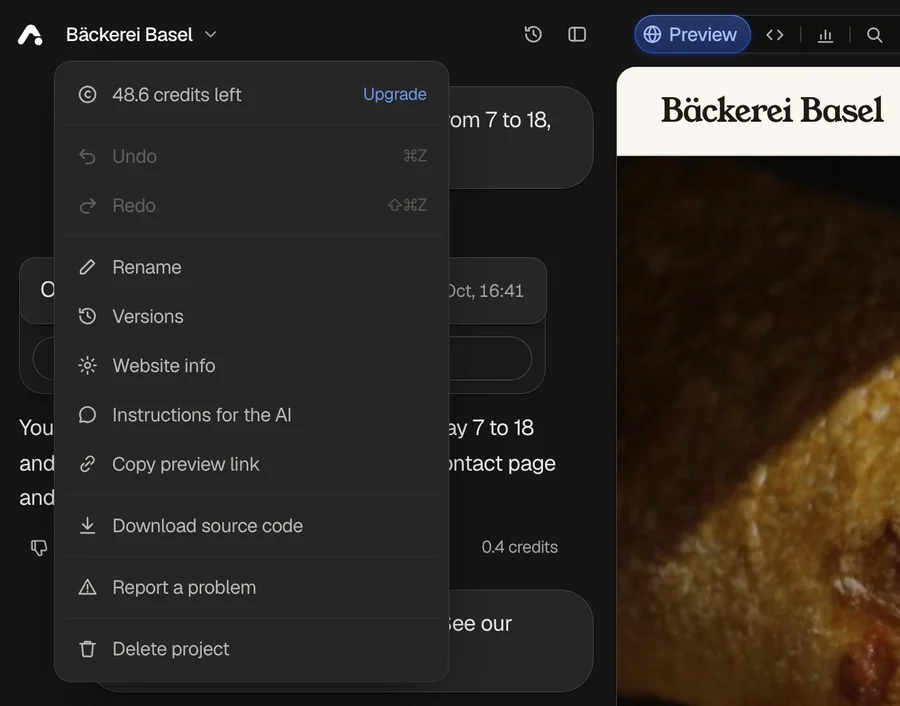
- Credits left
- With Upgrade or Get more, which open your plan in Settings.
- Undo, Redo
- Step back and forward through your changes, see Versions, undo and restore.
- Rename
- The project's name, as your dashboard shows it.
- Versions
- Every change the AI made, to compare and restore.
- Website info
- The title, description, icon and share image that search engines and browser tabs show. Your own title, description and share image are part of Pro and Business. See SEO for your website.
- Instructions for the AI
- Rules frascati follows in every change. See Write good requests.
- Copy preview link
- The same link as Share.
- Download source code
- The whole project as a zip file, with Pro and Business. See Download the code. A phone app has Download app project here, and also App icon and Design check after the first build.
- Report a problem
- Sends us your note, the address of the page and the last errors, never the content of your project.
- Delete project
- Asks first, then deletes the project with all its versions. A published website goes offline.
The chat
Write what should change and press Enter to send it; Shift Enter starts a new line. Next to the box are + for images (you can also paste them), your credits left, Build or Plan, and the microphone to dictate. See Write good requests.
Each answer that changed something ends with a version card, see Versions, undo and restore. Under an answer you find Undo (under the latest one), a button to report an answer that did not help, Copy, and in the ⋯ menu Try again and Restore this version. On the right, the credits the answer used.
After an answer, frascati suggests next steps you can click. When your credits run low, a card above the box says how many are left and what you can do.
The views
- Preview
- Your website or app as your visitors see it. In a website's preview, the tools at the bottom select an element, edit a text without credits, take a screenshot of a part and show the preview full screen. See Build your first website.
- Code
- Every file of the project. You never have to open it.
- Visitors
- Page views of your published website. See Messages and visitor numbers.
- SEO
- How search engines see your website, and what to fix. See SEO for your website.
- Messages
- What visitors sent through your forms. See Messages and visitor numbers.
- Cloud
- Tables, bookings, payments, the AI assistant and connections. See Cloud tables, Online booking and Payments with Stripe.
On a phone
On a small screen, Chat and Preview at the top switch between the two halves, and More opens the other views. A phone app's On your phone is in More too.
Keyboard shortcuts
Save now (it also saves by itself)
- Mac
⌘ S- Windows
Ctrl S
Switch between Preview and Code
- Mac
⌘ P- Windows
Ctrl P
Undo
- Mac
⌘ Z- Windows
Ctrl Z
Redo
- Mac
⇧ ⌘ Z- Windows
Ctrl Shift Z
Show the shortcuts
- Mac
⌘ /- Windows
Ctrl /
Send the message
- Mac
Enter- Windows
Enter
New line in the message
- Mac
Shift Enter- Windows
Shift Enter
| What | Mac | Windows |
|---|---|---|
| Save now (it also saves by itself) | ⌘ S | Ctrl S |
| Switch between Preview and Code | ⌘ P | Ctrl P |
| Undo | ⌘ Z | Ctrl Z |
| Redo | ⇧ ⌘ Z | Ctrl Shift Z |
| Show the shortcuts | ⌘ / | Ctrl / |
| Send the message | Enter | Enter |
| New line in the message | Shift Enter | Shift Enter |
Something missing or unclear? Write to us.