Versions, undo and restore
Every change the AI makes is saved as a version. You can take back the last one, look at an earlier one, see what changed and go back to it, and the versions after it stay.
Versions in the chat
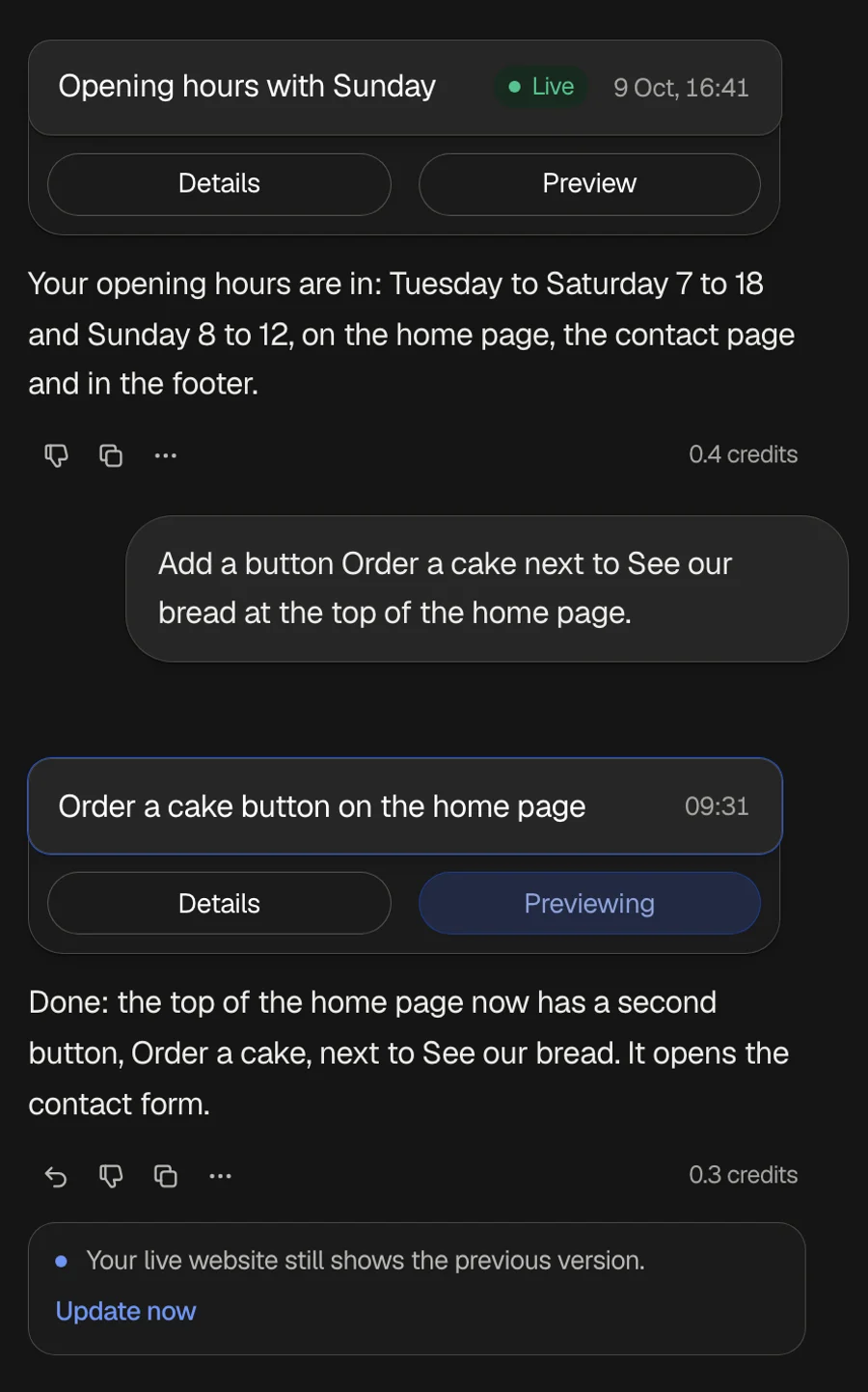
Each answer that changed your website or app ends with a version card: the short name the AI gave the change, and when it was made. The card of the version your published website shows says Live.
- Details
- Lists the parts the change touched, like a page or the footer.
- Preview
- Shows that version in the preview without restoring it, and its card says Previewing. A bar at the top of the preview names the version, with Restore and Back to current.
Undo and try again
- Undo under the answer
- Under the latest answer: takes back your last message, the answer and the version it made.
- Try again
- In the ⋯ menu under the latest answer: takes the answer back and sends the same request once more.
- Undo and Redo in the menu
- In the project menu, with
⌘ Zand⇧ ⌘ Zon a Mac orCtrl ZandCtrl Shift Zon Windows. They step back and forward through the changes made since you opened the project: the AI's changes, texts you edited in the preview, restored versions and changes in the Code view.
The Versions window
Click the clock at the top of the chat, or Versions in the project menu. The window lists every version, newest first: its number, what the AI wrote about the change, when, and how many parts it changed. Current marks the version you are working on.
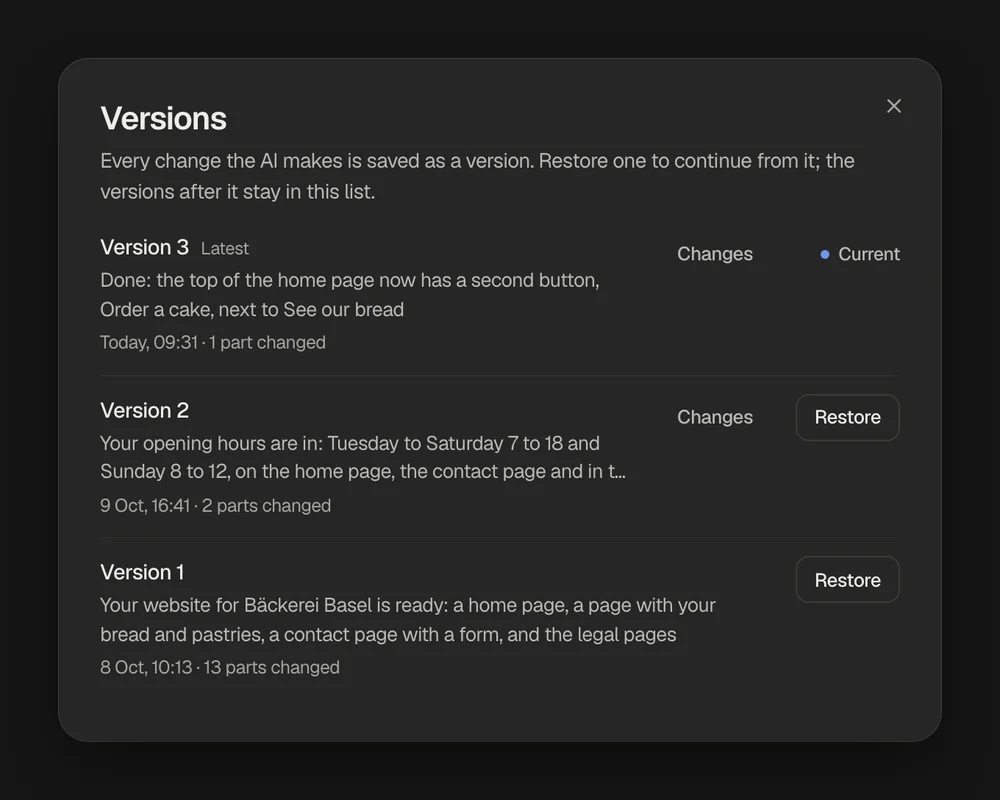
- Changes
- Shows line by line what changed against the version before, part by part.
- Restore
- Brings that version back as your current state. The versions after it stay in the list, and Undo in the project menu takes the restore back.
A long list starts with the newest ten, and Show all shows the rest. While the AI is writing, restoring waits until the answer is done.
Versions and your live website
Undoing, trying again and restoring change the project in the editor, not your published website. As soon as the editor shows something other than what is live, the button at the top right says Update with a blue dot, and under the latest answer frascati says that your live website still shows the previous version, with Update now. The website changes only when you update.
To put an earlier version back online, restore it and click Update.
What a version holds
A version is a copy of all the files of your website or app at that moment: the pages, texts and design, and what they set up, like Cloud tables and online booking. Restoring brings that back too. What visitors sent stays as it is: form messages, bookings, orders and the entries in your tables.
Something missing or unclear? Write to us.