Connect your own domain
Your website can run on a domain you own instead of the frascati address. You set a few DNS records where you bought the domain; frascati does the rest, including the HTTPS certificate.
Before you start
- Own domains are part of Pro and Business.
- Publish the website first. The domain settings are in the Publish window.
- You need the domain itself, bought at a domain provider such as GoDaddy, IONOS, Namecheap, Infomaniak, Hostpoint or Cloudflare, and your login there. frascati does not sell domains.
Connect the domain
In the editor, click Published (or Publish) at the top right.
Under Custom domain, type your domain, like mybusiness.com or www.mybusiness.com, and click Connect.
frascati connects the version with www and the one without together. The one you typed is your website's address, and the other forwards to it.
A domain belongs to one website only. A subdomain like shop.mybusiness.com works too; it has no www partner.
Set the DNS records
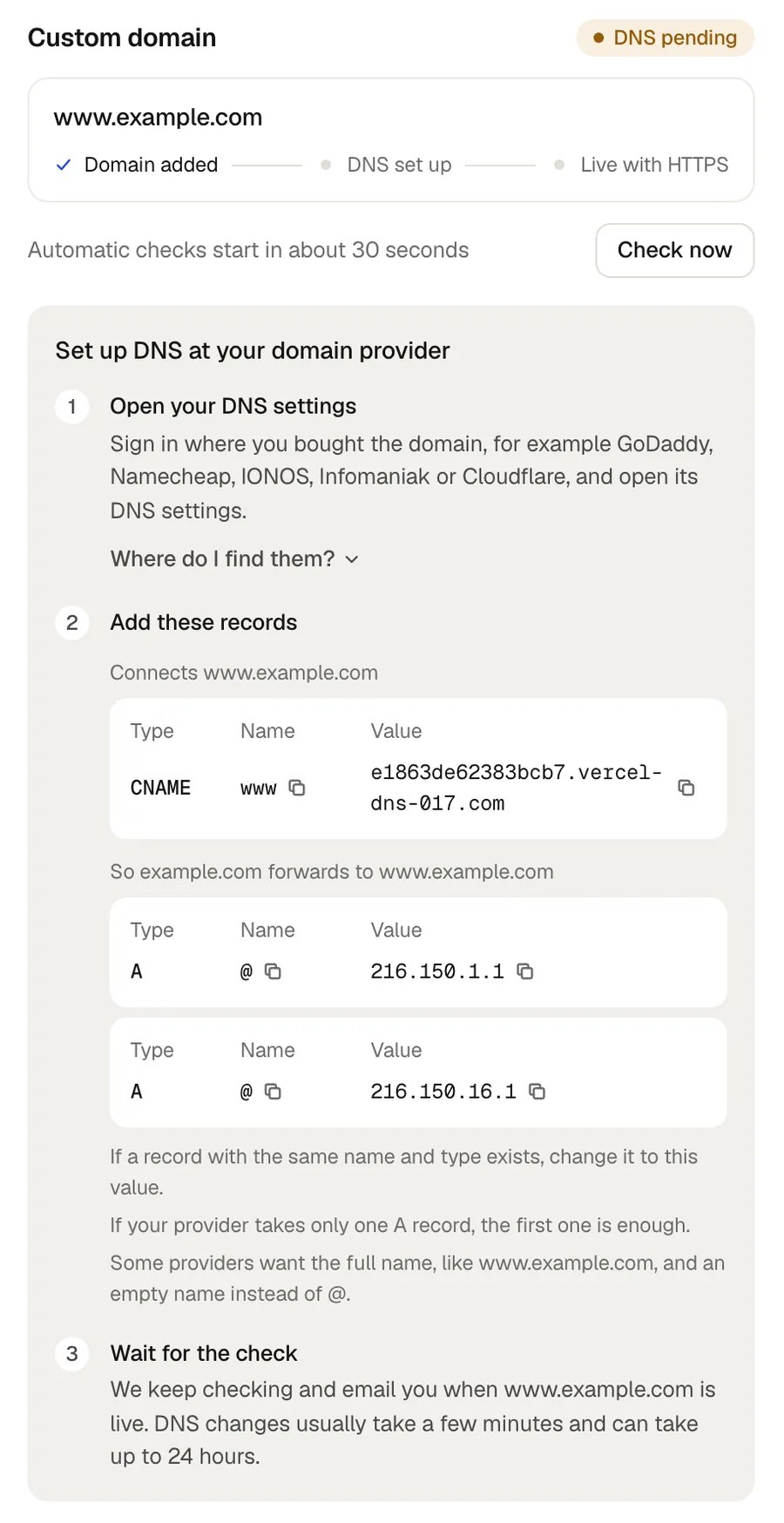
frascati now lists the records to set. They come from Vercel, the hosting provider frascati runs your website on, for exactly your domain. Sign in where you bought the domain and open its DNS settings, often called DNS, DNS zone or DNS records.
- A record
- For the domain itself, with the name @. Often two values; if your provider takes only one A record, the first one is enough.
- CNAME record
- For www or another subdomain, with that name.
- TXT record
- Only when the domain was connected to another account at our host before. It proves that the domain is yours.
- If a record with the same name and type exists, change it to the new value.
- If frascati lists records to remove, remove them: they point the domain somewhere else.
- Some providers want the full name, like www.mybusiness.com, or an empty name instead of @.
- At Cloudflare, set the records to DNS only, with the grey cloud.
- Leave all other records as they are, especially the MX records for your email.
Each value has a copy button, so you do not have to type it.
Wait for the check
The window shows three stages: Domain added, DNS set up and Live with HTTPS. While it is open, frascati checks every 10 seconds for five minutes, and Check now checks at once. After that, frascati checks every 30 minutes by itself and emails you when your website is live on the domain.
DNS changes usually take a few minutes and can take up to 24 hours. Once DNS is right, the HTTPS certificate follows by itself, usually within minutes. There is nothing to buy or install.
If the domain still does not reach your website after three days, frascati emails you the records again.
Why you may still see the old website
Answers from DNS are remembered for a while: by the router at home or in the office, by your computer and phone, and by your internet provider. So one device may already show your new website while another still shows the old one, or an error, for a few hours.
- Check on your phone with Wi-Fi switched off, over mobile data.
- Restart the router, or wait: the remembered answer expires by itself.
- Trust the status in the Publish window over what one device shows. frascati checks from its own servers, so what your devices remember does not change it.
Once the domain is live
- Every page has its own address on your domain, like mybusiness.com/menu.
- Your domain has its own sitemap, robots.txt and website icon, so search engines find every page.
- Your frascati address, like
frascati.app/p/your-name, forwards to your domain, so links you shared before keep working. - Search engines and AI search tools get the finished HTML of every page. See SEO for your website.
If the domain later stops reaching your website, for example after a change at your DNS provider, frascati notices at its checks. After about an hour, links point to the frascati address again, so nobody is sent to an address that does not work. Once the domain works again, it is used again.
Change or disconnect the domain
In the Publish window, Disconnect domain removes it; while it is still being set up, the button says Cancel and remove. Your website stays online at the frascati address. To switch to another domain, disconnect the old one and connect the new one.
Something missing or unclear? Write to us.