Classes and events with places
For what happens on set dates for a group: each date has a number of places, your website shows how many are left, and a full date takes names for a waitlist. You keep the dates and the guests in the Cloud tab, without credits. Included in every plan.
Set it up
Ask for it in the chat and say what can be booked, when, and for how many:
“Add class bookings: Vinyasa on Mondays at 18:30 and Yin on Thursdays at 19:00, 14 places each, CHF 28.”
Or for an event: “Let guests book our wine tasting on 8 November at 19:00, 20 places, up to 4 per booking.”
frascati builds a schedule with booking in the design of your website and sets up the classes. Setting it up is a normal change and uses credits; the bookings use none.
Or start without the chat: in the Cloud tab, Set up classes and events and add your first class. Show them on my website then asks the AI to add the schedule to your website. The Yoga studio template comes with its classes ready to book.
Classes and their dates
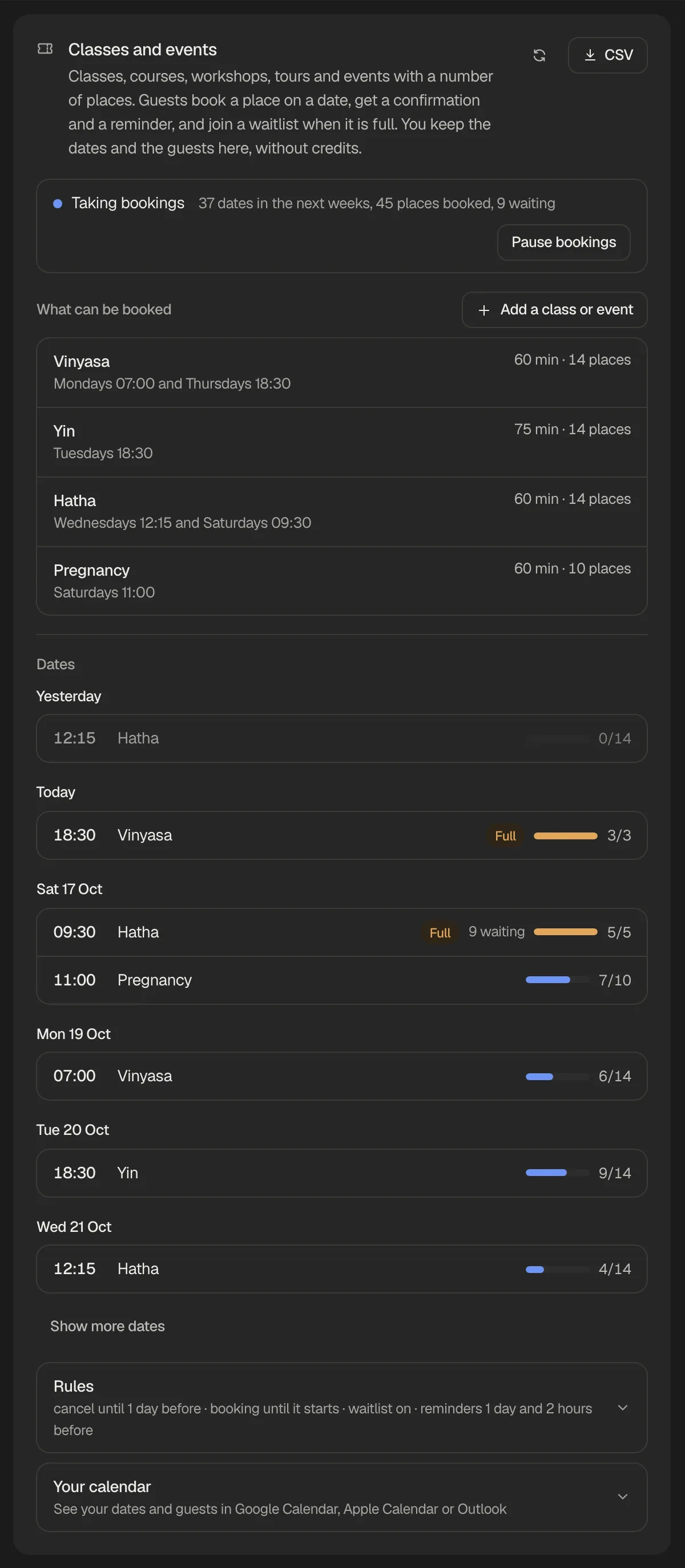
Open Cloud, then Classes and events. Add a class or event, or click one to change it. Save, and your website shows the change at once, without publishing again.
- Name and description
- What guests see on your website and read in their emails. Write them in the language of your website.
- Minutes
- How long it takes, from 5 minutes to a whole day.
- Places
- How many guests fit on each date, up to 1,000. One date can have other places, see below.
- Per booking
- How many places one guest may book at once: 1 for a class, up to 20 for a tasting or a tour.
- Price
- Shown next to the class, like CHF 28. Guests pay nothing when they book.
- Where
- Only when it is not at your usual address, like a second room or the meeting point of a tour.
- Every week
- Up to 14 weekly times, like Monday 18:30 and Thursday 07:00, with a first and a last day for a course that runs for a term.
- Single dates
- Up to 60 dates of their own, for a workshop, a tour or an event.
A website has up to 40 classes and events. Weekly dates show as far ahead as set in the setup (60 days unless you ask for another), single dates up to a year ahead.
How guests book
They see the coming dates with how many places are left. A full date says it is fully booked.
They pick a date and give their name and email address, how many places they want when you allow more than one, and the answers to your own questions.
Right after, they get a confirmation with a calendar file, the place if you gave one, and a link to view or cancel the booking.
They get a reminder before the date, at the times you choose.
The emails come in your website's name, and replies go to you. They are in the language of your website: English, German, French, Italian, Spanish, Portuguese and Dutch. frascati locks a date while it saves a booking, so two guests never get the last place at the same time.
The waitlist
When a date is full, guests can join its waitlist, if you keep one. They get an email that they are on it. When a place comes free, because someone cancels or you give the date more places, the first on the waitlist gets it, with an email that the booking is confirmed. Someone who wants two places does not hold up someone behind them who wants one.
Places are given until booking for the date closes. Guests can leave the waitlist with the link in their email until the date starts.
Your dates and guests in the Cloud tab
Under Dates, every coming date shows how many places are booked and how many people wait. Click a date to see its guests, booked and waiting, in the order they joined.
- Cancel
- Cancels a guest's booking or waitlist place. The guest gets an email, and freed places go to the waitlist.
- Give a place
- Moves someone from the waitlist into the date. On a full date, frascati asks first, and books over the limit when you say so.
- Add a guest
- For bookings by phone or at the desk: a name, the places, and if you like an email address and a phone number. A confirmation goes out only when you tick it.
- Places on this date
- More or fewer places for one date. More places go to the waitlist first.
- Cancel this date
- Cancels the date for everyone, with an email to each guest and everyone waiting. Open this date again takes new bookings again.
- Attendee list (CSV)
- The guests of one date as a file for Excel, with the answers to your own questions. CSV at the top downloads every booking.
- Pause bookings
- Stops new bookings on your website until you take bookings again. Existing bookings stay.
A date you take out of the schedule keeps its bookings: it stays in the list, marked Not in the schedule, until you cancel it. Deleting a class cancels its coming bookings with an email to each guest, and frascati asks first.
Rules
Under Rules, set without the chat and without credits. Save rules and they work at once, on your published website too.
- Waitlist for full dates
- On or off. When it is off, a full date only says it is fully booked.
- Guests can cancel online
- Until the date starts, or until 1 hour to 3 days before. The confirmation says until when; after it, the guest's page shows your phone number and email address. Each booking keeps the rule it was made under.
- Booking closes
- When the date starts, or 1 hour to 2 days before. After that, the date no longer shows on your website.
- Reminder emails
- None, one from 2 hours to 3 days before, or a second one closer to the date. They go out every 30 minutes. Someone who got a place from the waitlist late gets only the reminders still to come.
- Note in the emails
- Up to 500 characters of your own in the confirmation and the reminders, like “Please bring a mat.”
- Phone for late cancellations
- Shown on the guest's booking page once the booking can no longer be cancelled online.
Your booking form
Open Cloud, then Classes and events and Booking form. Here you shape the form guests fill in, without the chat and without credits.
- Your words for the fields
- Other words for Name, Email, Phone, Note and the number of places, up to 40 characters, like “Your wishes” in place of Note. An empty field keeps the words your website uses. Your words show on your website and in the emails. Write them in the language of your website.
- Your own questions
- Up to 8 questions, like allergies, the level of experience or how guests heard of you. Each takes one kind of answer: Short answer, Long answer, Number, Choice (up to 20 options), Tick box or Date. Guests cannot book without answering a question marked Required.
- The answers
- Show with each booking in the Cloud tab, in the email you get and in the guest's confirmation, on the guest's booking page, and as a column each in the CSV file. A question you remove keeps its answers in the bookings made before.
Save form and it works at once, on your published website too, without publishing again. If your website's booking form was made before 14 October 2026, Booking form says it does not show your words and questions yet. Guests book as before, without your questions, until Show them on my website has the AI update the form, a normal change that uses credits.
Ask only for what you need to know. Practices and therapists: never ask for symptoms or other health details in the booking form.
Your dates in your calendar
Under Your calendar, Create calendar link gives you a private link for Google Calendar, Apple Calendar or Outlook, set up as for online booking. Every date shows with its places booked, like Vinyasa (8/14), and the names of the guests. Anyone with the link sees those names, so keep it to yourself; Reset link ends the old one at once.
Emails to you
You get an email for each new booking, each new name on a waitlist, each place the waitlist gets and each booking a guest cancels, at the address set under Messages.
Try it in the preview
You can book in the preview like a guest. These bookings are marked Test and take no place, and you can delete them. The emails still go out, so use your own address.
What classes and events do not do
- Guests do not pay when they book. Sell class passes and memberships with payments; the booking does not check them.
- There are no member accounts: guests book with their name and email address each time.
- Guests cannot move a booking to another date. They cancel with their link and book again.
- Emails only, no text messages.
- Phone apps do not have it yet; it is for websites.
Something missing or unclear? Write to us.