Make your first video
A short video for Instagram, TikTok or YouTube Shorts, made from your website or your own photos, with music made for it. You change it in the chat and download it as an MP4 to post.
Start from your website or your photos
In the box on your dashboard, switch to Video. Then give frascati something to show:
- Your website
- Click + and pick one of your frascati websites under From my website. The video takes its photos, its colors, fonts and logo, and what it says about your business.
- Your own photos
- The photo button next to + adds up to 8 of them. You can also drop or paste them into the box.
- Other material
- Files, links and pasted text, as for a presentation.
Then write what the video should show, for whom, and how it should end. With a website or photos, the words are optional.
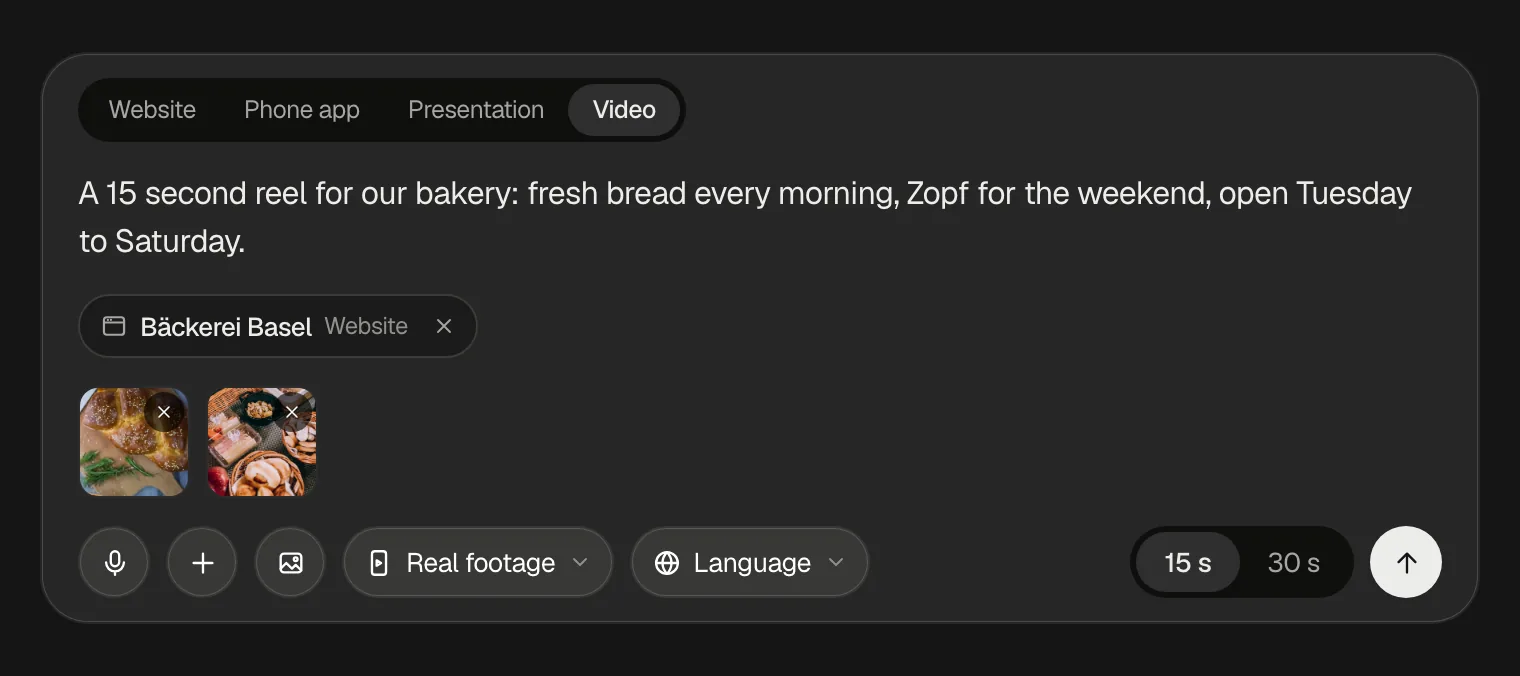
- Length
- 15 s or 30 s.
- Language
- Auto follows your text and your material. Or choose English, Deutsch, Français, Italiano or Español.
- Scenes
- Real footage, the default, shows your website's photos, your own photos and stock clips, at no extra cost. AI-generated films every scene with AI, in one of three looks: Cinematic, Product hero or Energetic. Its panel shows the price before you start, and a shot that fails costs nothing.
Send it with the arrow, and the video is made right away.
Watch it being made
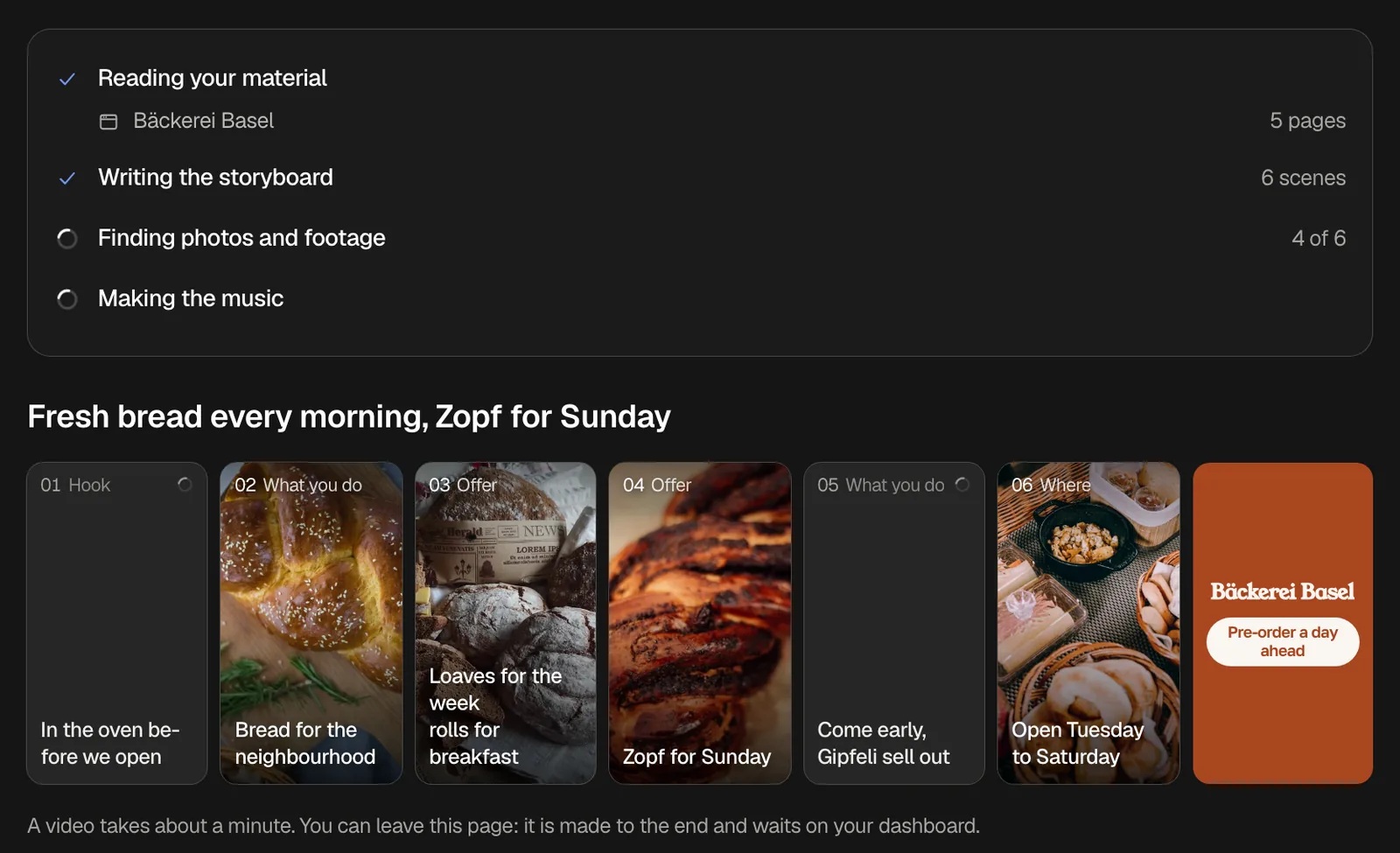
frascati writes the storyboard, finds a photo or a clip for each scene and makes the music, and the scenes appear as they are found. A video of real footage takes about a minute, one with AI-generated scenes a few minutes. You can leave the page: it is made to the end and waits on your dashboard.
Check the scenes
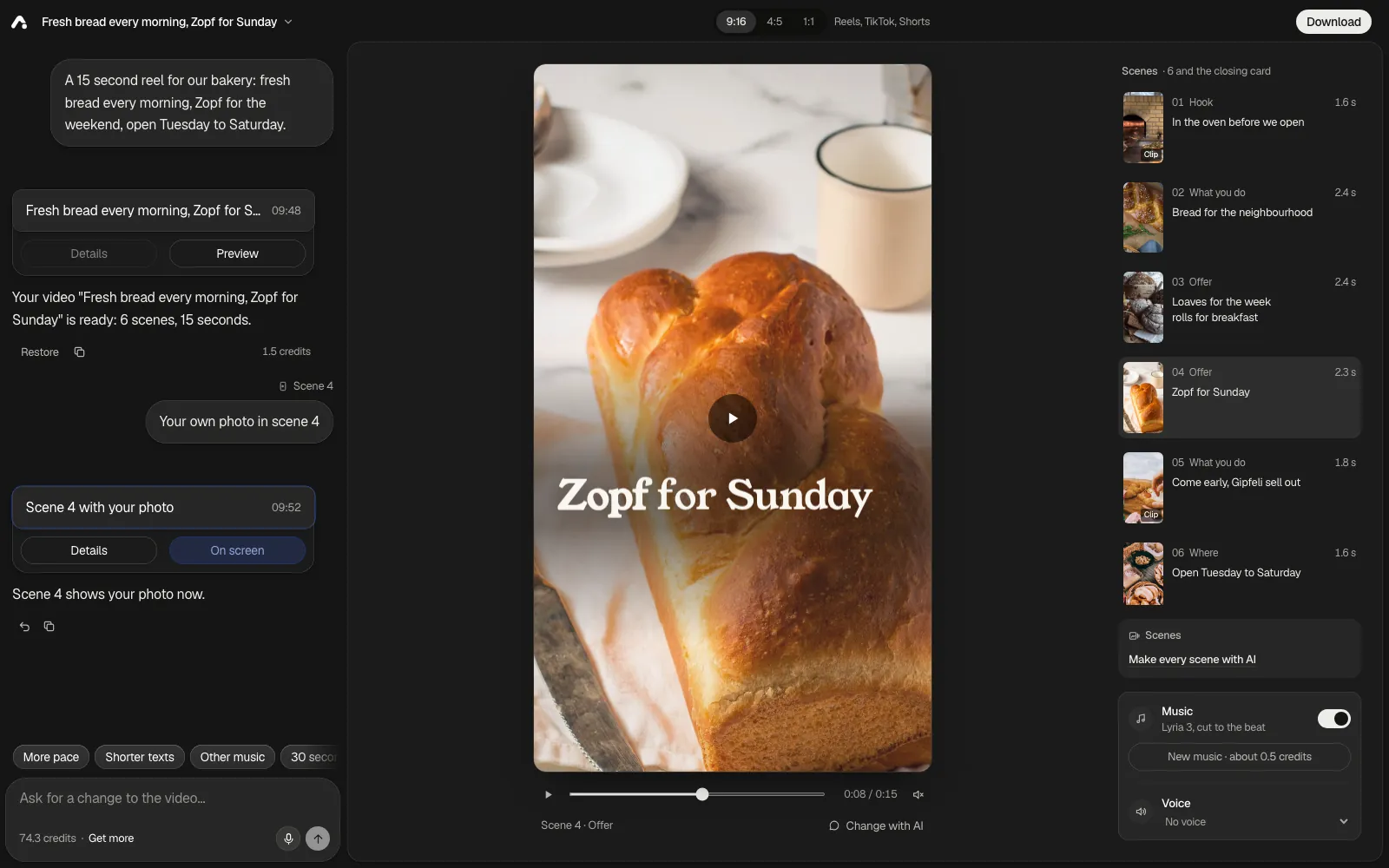
The video plays in the middle. Scenes on the right lists each one with its number, its part in the story, like Hook or Offer, how long it runs, and its words. Click a scene to jump to it. The line under the video names the scene on screen, and Change with AI beside it points the chat at that scene (Change it in the chat). The Closing card at the end shows your logo or name, a call to action and, when your material names them, your address or website.
At the top, on a computer or tablet, 9:16, 4:5 and 1:1 switch the format at any time, without credits: 9:16 for Reels, TikTok and Shorts, 4:5 for the Instagram feed, 1:1 for a square video. A new video starts in 9:16.
On a phone, the two buttons at the top right switch between the chat and the video.
Under the scenes, Make every scene with AI films each scene with AI in one look instead of the photos and clips. Its window shows the price first, the shots arrive as a new version after a few minutes, and a shot that fails costs nothing.
Use your own photo in a scene
Point at a scene in the list to see its buttons; on a phone they are always there. The first one, Use your own photo, opens your files: pick a photo, and the scene shows it right away. You can also drag a photo from your computer onto a scene.
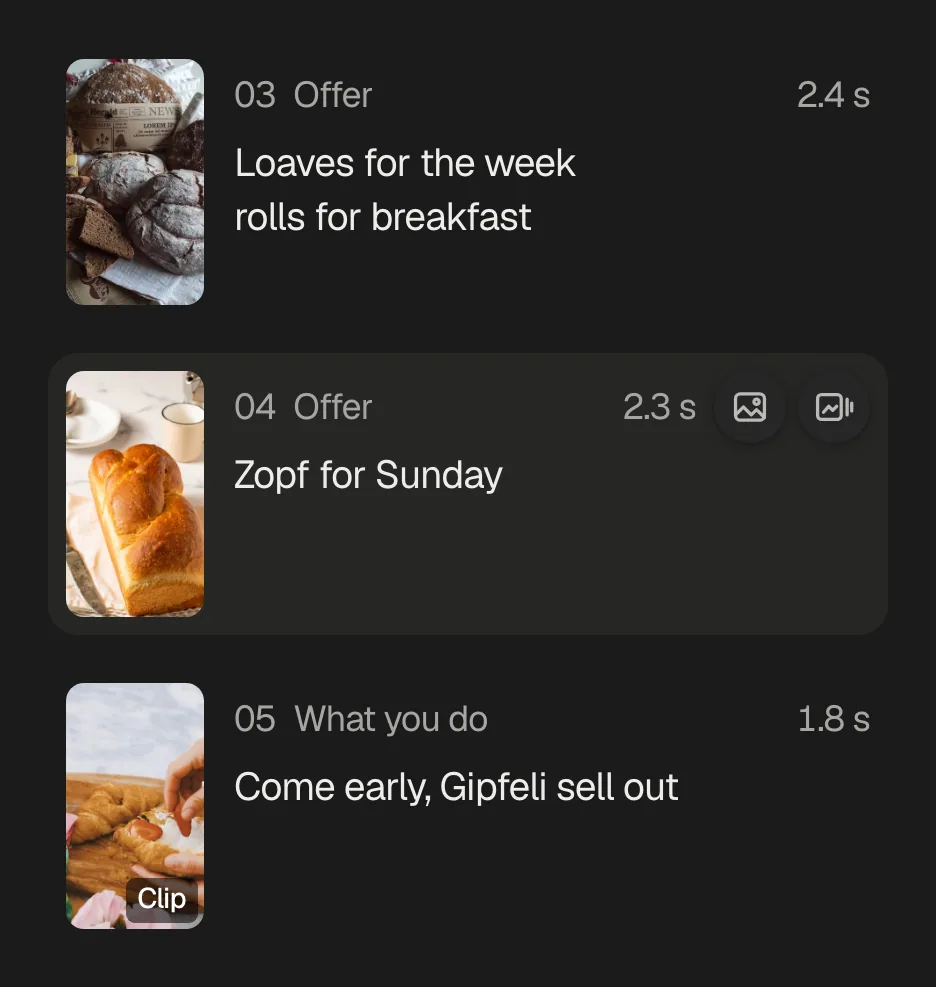
This uses no credits. It is a version of its own in the chat, like Scene 4 with your photo. A video keeps up to 24 of your own photos.
In a video of real footage, a photo scene has a second button: the AI turns the photo into a short clip with a slow camera move. Its window shows the price first. The clip takes a few minutes, arrives as a new version, and costs nothing if it fails. AI can change small details, so look at it before you post.
Change it in the chat
Write what should change, like “scene 2 shorter”, “more pace” or “other music”. To point at a scene, show it in the video, for example by clicking it in the list, and click Change with AI under the video: the video stops there, the box names the scene, and on a phone the chat opens. To pick several scenes, ⌘-click them in the list (Ctrl-click on Windows). With the closing card on screen, Change with AI writes “Closing card:” into an empty box.
“Scene 1 should say: Fresh from our oven at 6.”
The suggestions above the box do it in one click: More pace, Shorter texts, Other music, and 30 seconds or 15 seconds.
Each change from the chat or a scene's buttons is a version. Details shows what changed, Preview plays an earlier version, and Restore brings it back. Every answer shows the credits it used, also one that only answers a question and leaves the video as it is.
Music and a voice
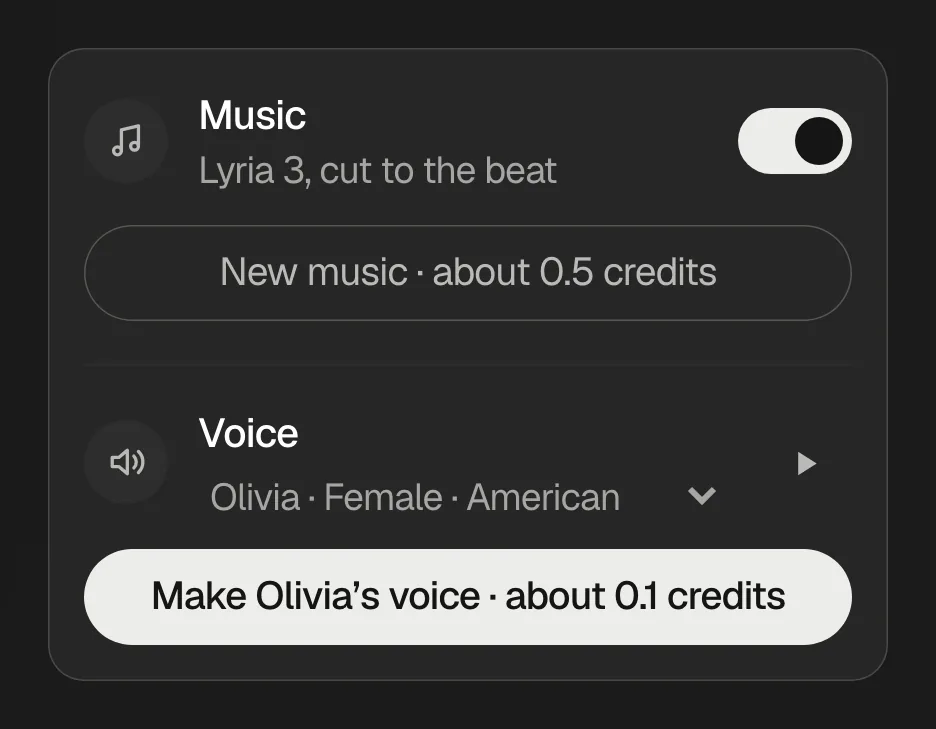
Music is made for every new video and cut to the beat of its scenes. Music next to the scenes switches it off and on. New music makes another piece in the video's mood and says its price on the button: about 0.5 credits.
Voice reads a line in each scene, with captions while it speaks. Choose one of four voices and listen to it for free. The button then names what making it costs before you click it, like Make Olivia’s voice · about 0.1 credits in the picture. A voice made once for the same lines is used again without credits.
Download and post it
Click Download, then Create MP4. The video is made in your browser tab, as the preview shows it, and uses no credits. You can close the window while it is made: it keeps going, and Download MP4 saves it once it is ready.
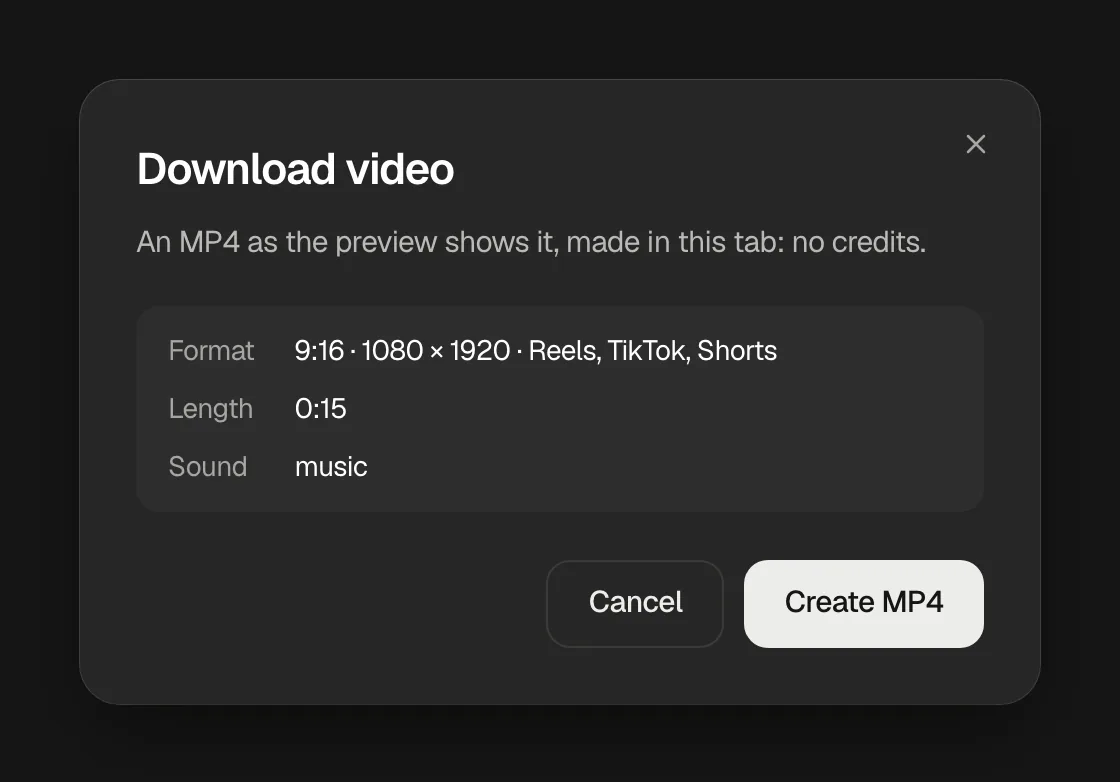
The MP4 is 1080 × 1920 in 9:16, 1080 × 1350 in 4:5 and 1080 × 1080 in 1:1, the way Instagram, TikTok, YouTube Shorts and WhatsApp take it. frascati does not post it for you: upload it in their apps like a video you filmed yourself.
What it costs
A new video of real footage, with its music
- Credits
- billed by what the AI used; it needs about 3 credits left to start
AI-generated scenes, a clip of a moving photo
- Credits
- the price shows before you start; a shot that fails costs nothing
A change or a question in the chat
- Credits
- billed by what the AI used, shown under the answer
New music
- Credits
- about 0.5 credits
A voice
- Credits
- its price shows on the button first
Your own photo in a scene, the format, music on or off, the MP4
- Credits
- free
| What you do | Credits |
|---|---|
| A new video of real footage, with its music | billed by what the AI used; it needs about 3 credits left to start |
| AI-generated scenes, a clip of a moving photo | the price shows before you start; a shot that fails costs nothing |
| A change or a question in the chat | billed by what the AI used, shown under the answer |
| New music | about 0.5 credits |
| A voice | its price shows on the button first |
| Your own photo in a scene, the format, music on or off, the MP4 | free |
If making a video fails, it uses no credits. See Plans and credits.
Something missing or unclear? Write to us.