Your dashboard
The dashboard is where you start something new and find everything you made. You land there after signing in, and the frascati mark at the top left of the editor takes you back.
Start something new
The box at the top starts a new project. Choose Website or Phone app, describe it in your own words and send it. Below the description you find the microphone to dictate, images for your logo or photos, Import existing website and Build or Plan. Each is explained in Build your first website.
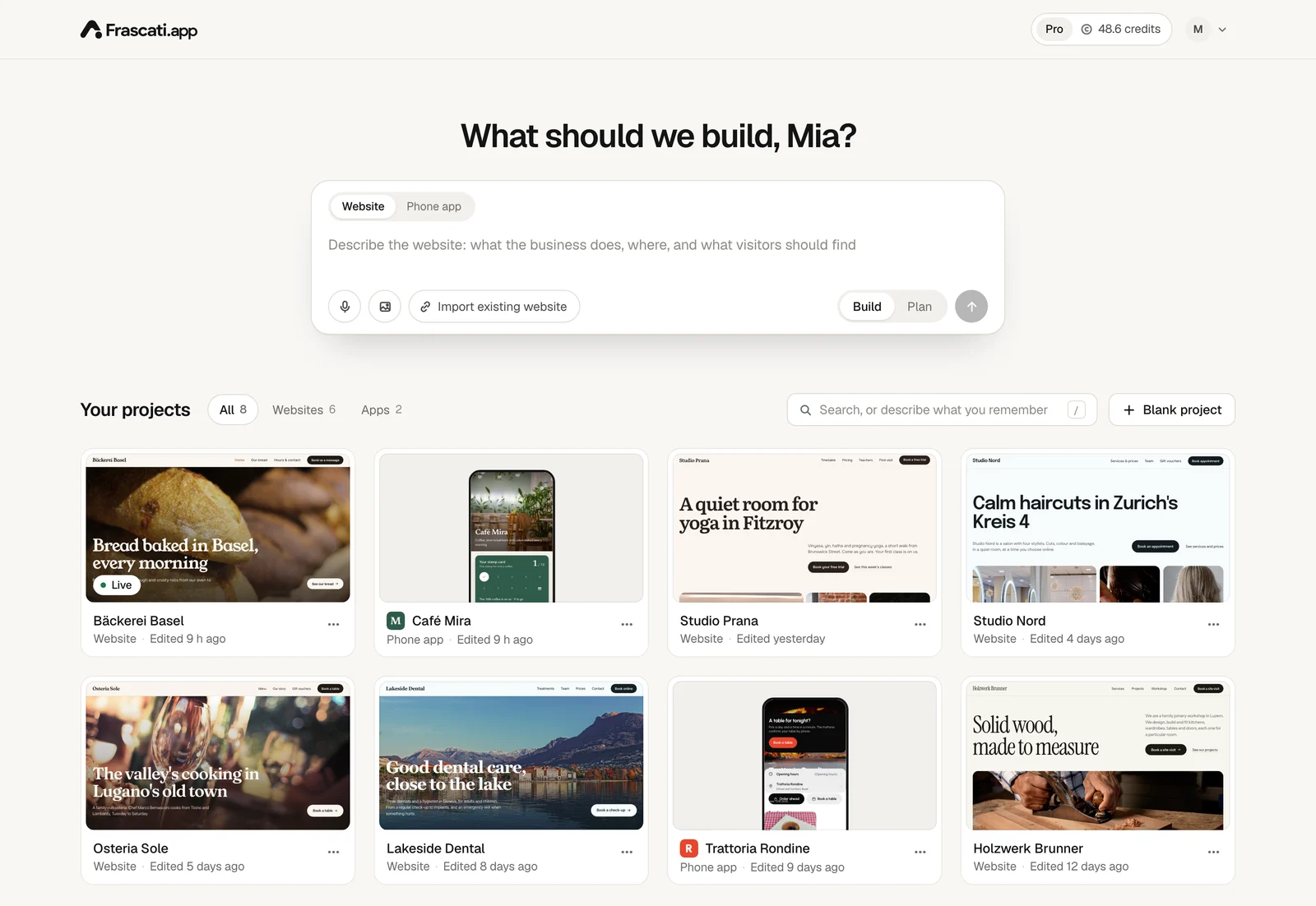
Blank project, next to your projects, opens an empty editor. When your plan's projects are used up, it shows which plan has room for more.
Your projects
Every website and phone app is a card: a picture of it, its name, what it is and when you last changed it. A published website says Live on its picture. Click a card to open it in the editor. The most recently changed come first, and Show more shows the next ones.
The ⋯ button on a card opens its menu:
- Open live site
- Opens the published website in a new tab. Only on published websites.
- Duplicate
- Makes a copy with “(Copy)” after the name: the same pages and design, with an empty chat and no versions. Its Cloud tables and bookings are set up again, without the entries of the original. The copy is not published.
- Delete
- Asks first. All versions are deleted, and a published website goes offline. This cannot be undone.
Find a project
From seven projects on, a search field appears above the cards. Press / to jump into it, and Escape to empty it.
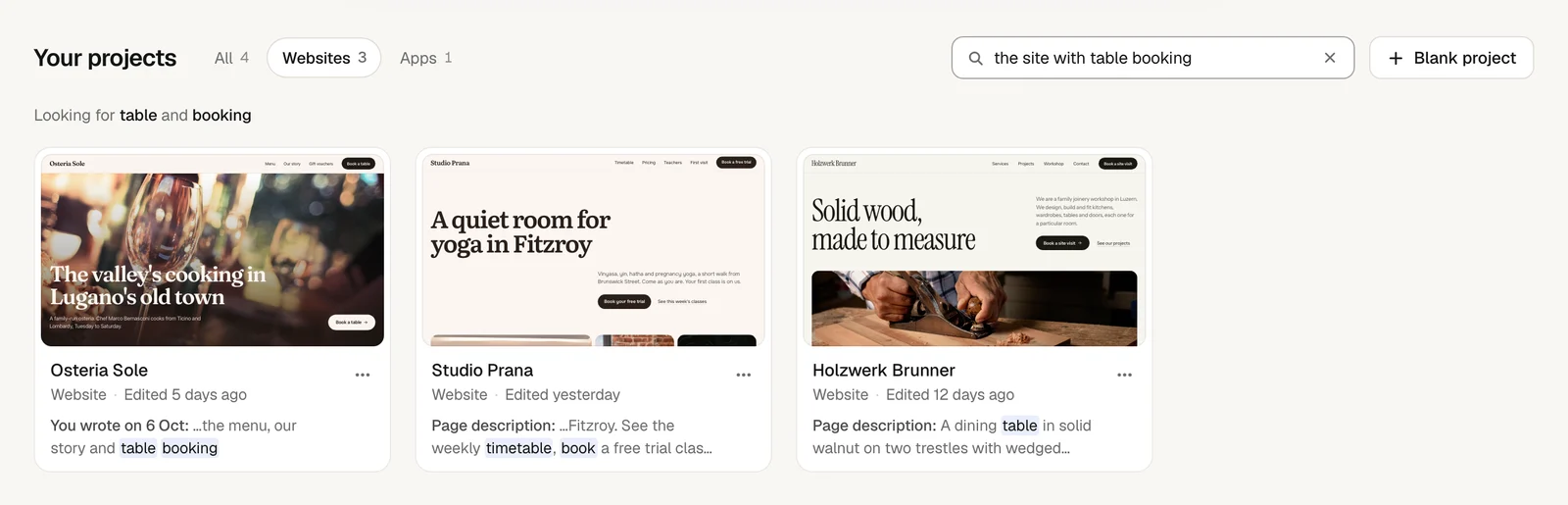
Type what you remember, the way you would say it: “the site with table booking”, “where I wrote about the Sunday hours”, “the café app from last week”. The search looks in the names of your projects, in what you wrote in their chats and what frascati answered, in your websites' page titles, page descriptions and business details like the address and opening hours, and in your apps' names.
- Write in English, German, French, Italian or Spanish. A word also finds its translation: “opening hours” finds “Öffnungszeiten”.
- Words for a time narrow it down, like “yesterday”, “last week”, “in September” or “two weeks ago”.
- Words for the kind, like “app” or “website”, show only that kind. Click All to see the rest.
- Small typos in longer words are forgiven, and accents and umlauts can be left out.
Above the cards, the search says which words it looked for. Under each card it says where it found them, like You wrote on 6 Oct or Page description, with the words marked. The search uses no credits.
Websites and apps
Once you have websites and phone apps, All, Websites and Apps next to the title show one kind at a time, with how many there are of each. Your browser remembers the last choice.
Your plan and your account
At the top right you see your plan, or Trial with the days left, and the credits you have left. A click opens your plan in Settings. Without a plan, the button there says Start free trial or Choose a plan.
Your picture or initial next to it opens the account menu: Settings, Plan and credits, Report a problem and Sign out. See Your account and inviting friends.
A new account
Before your first project, the dashboard suggests a few descriptions to start from, like a hair salon or a carpenter: a click puts one into the box. Below it are four templates and All templates for the others. See Templates and the showcase.
Something missing or unclear? Write to us.