Build your first website
From a sentence about your business to a website online. The first version takes about two minutes; how long the rest takes is up to you.
Describe your business
Open your dashboard, or the home page if you are not signed in, and write into the big box what the website is for: what the business does, where, for whom and what visitors should find. Write in the language the website should be in. frascati writes the texts in that language.
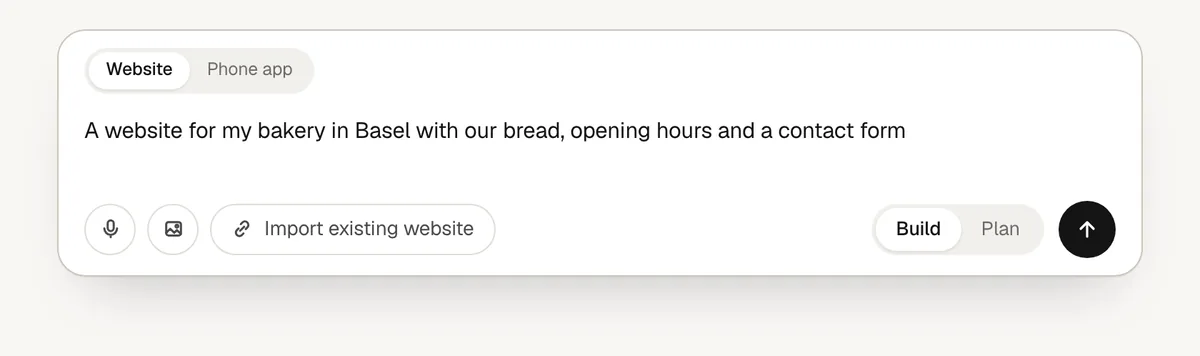
Around the box you find four more options:
- Import existing website: paste the address of your current website. frascati reads its text and rebuilds it with a fresh design and your real services and details.
- Add images: your logo or your own photos, for example for the top of the page. This appears once you are signed in.
- The microphone: dictate instead of typing.
- Build or Plan: Build starts right away. Plan first asks questions and suggests a plan, and builds only once you approve it.
Sign up and start the trial
If you are not signed in yet, frascati keeps what you typed and asks you to create an account. You say who the website is for, answer three optional questions about you, and choose a plan.
Every plan starts with a free 3-day trial with 20 credits. You add a card, and today you pay nothing. Cancel in your settings before the trial ends and nothing is charged; otherwise the plan you chose starts. Your website is built right after this step. See Plans and credits.
Check the first version
frascati writes the pages, the texts and the contact form and picks fitting photos, and you see the website grow in the preview. The first version usually takes about two minutes and uses about 3 credits.
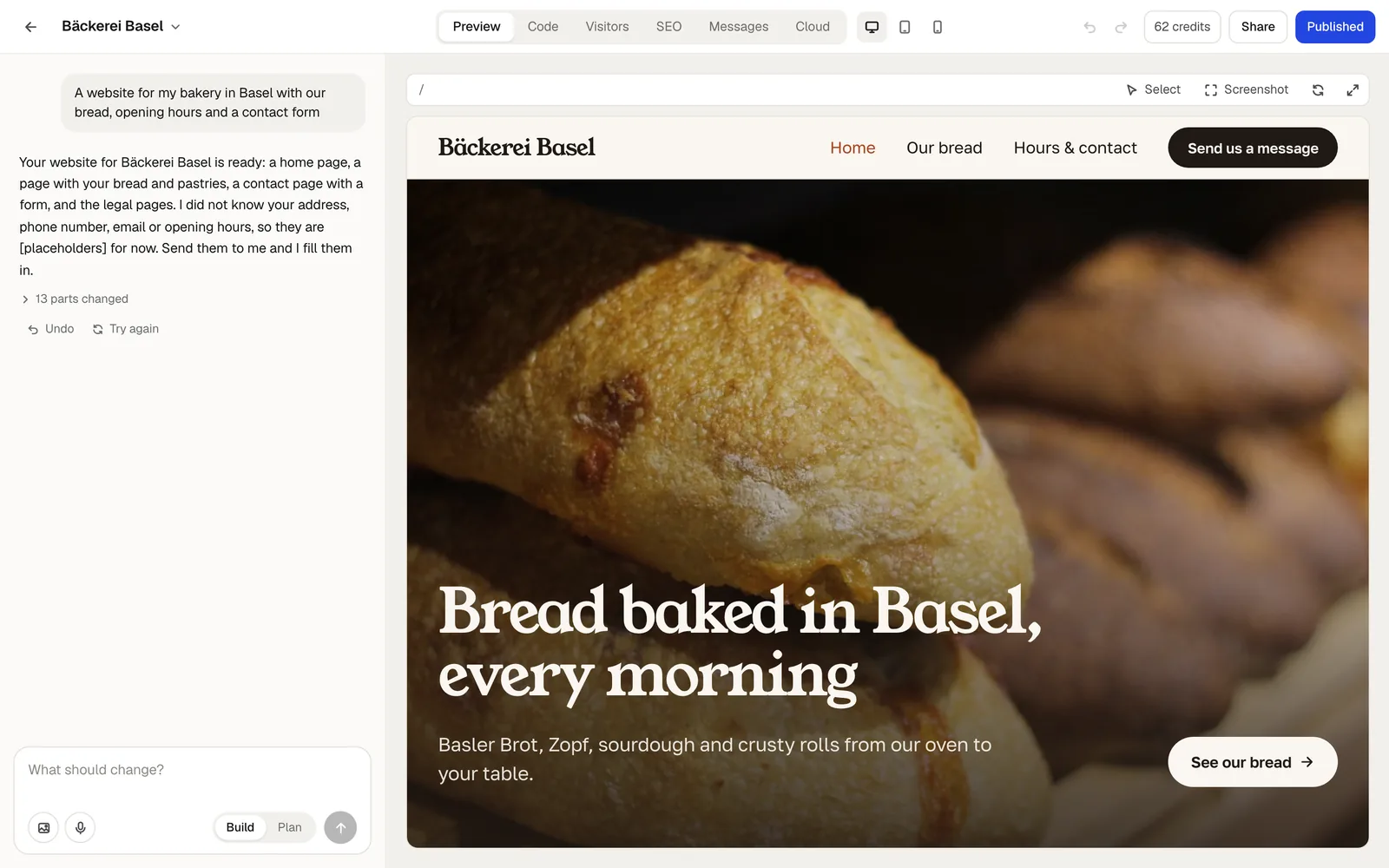
Then read it the way a customer would. Fill in every [placeholder] by writing the facts in the chat, for example “We are open Tuesday to Saturday from 7 to 18.”
The three buttons above the preview switch between desktop, tablet and phone, so you can check every size.
Or start from a template
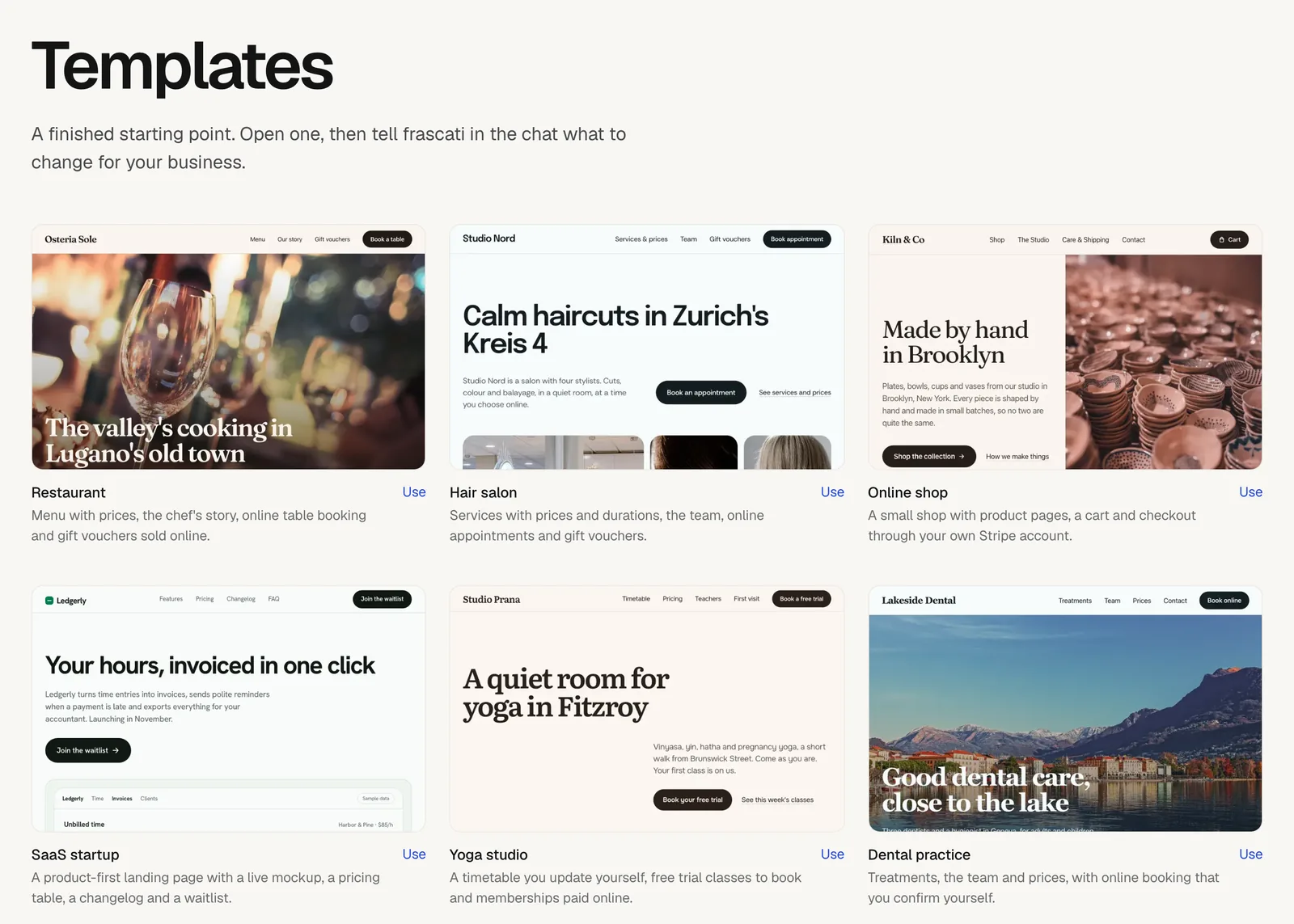
Prefer a finished starting point? The templates page has 12 websites built with frascati, such as a restaurant with table booking, a hair salon, an online shop and a yoga studio. Click Use, and the template opens in the editor. Then tell frascati in the chat what to change, for example “Change the texts to my business” followed by what you offer.
Opening a template uses no credits; the changes you ask for do. Further down the page you find websites that other people shared as templates.
Change it in the chat
Write what should change, one thing or several at once. frascati changes the website and says in the chat what it did. Most changes use less than 1 credit.
To say exactly what you mean, use the tools above the preview and in the chat box:
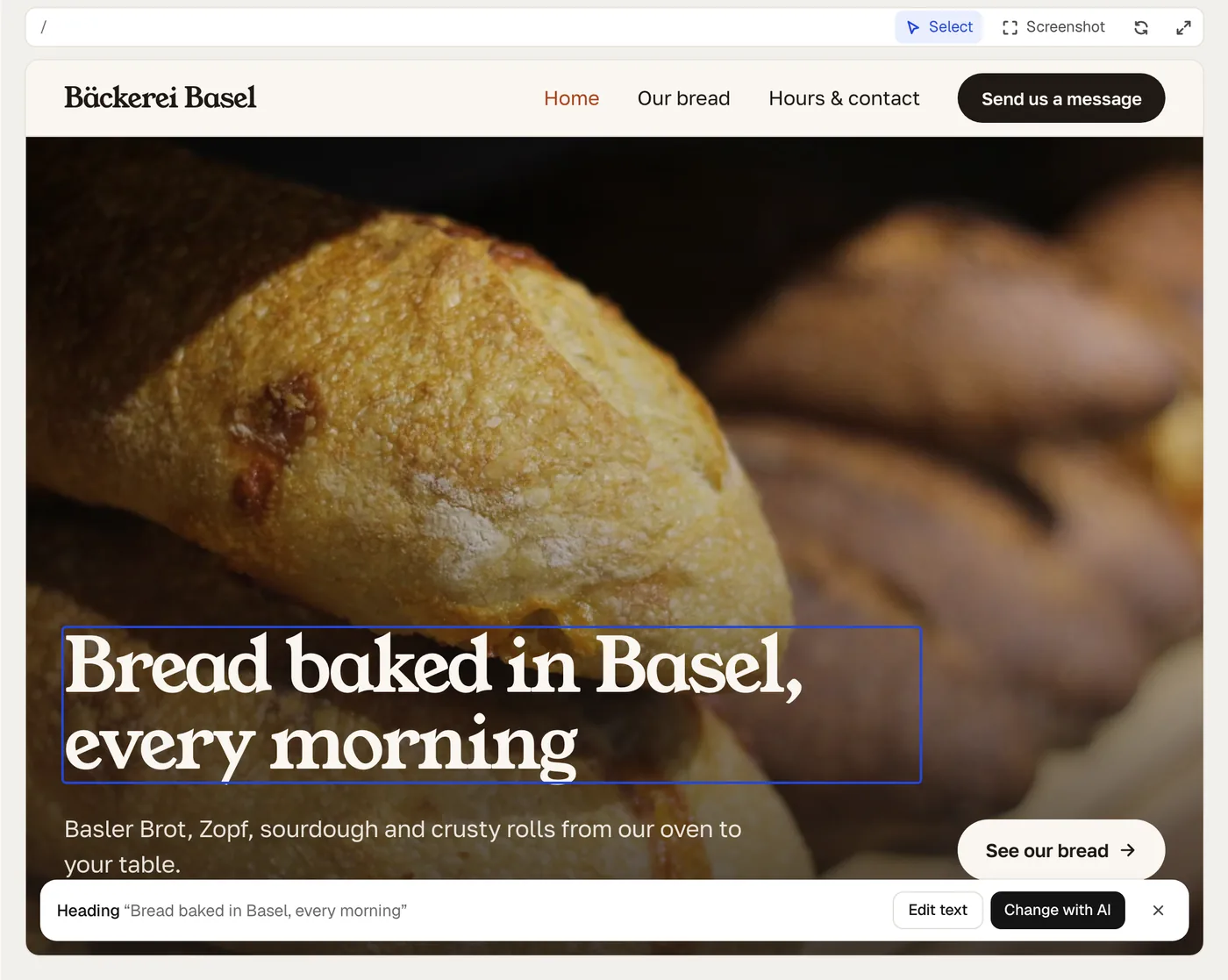
- Select
- Click an element in the preview, like a heading or a photo. Change with AI makes your next message about exactly that element. For a text, Edit text lets you type the new words right in the preview: Enter saves, and it uses no credits.
- Screenshot
- Drag over a part of the preview and write what should change there. Several screenshots with a note each can go into one message.
- Images
- Add photos or your logo to a message with the image button, or paste them.
- Plan
- Switch the chat to Plan to ask a question or plan a bigger change without touching the website. A question uses 0.1 to 0.5 credits.
Under the latest answer, Undo takes back the last change and Try again asks for it once more. On wide screens, the arrows at the top of the editor step back and forward through your edits. Versions in the project menu lists every change the AI made: Changes shows what it changed, and Restore goes back to that version while the later ones stay in the list.
Rules for every change go into Instructions for the AI in the project menu (click the project's name at the top left): how to address visitors, colours that must stay, facts about your business, words to avoid.
Publish it
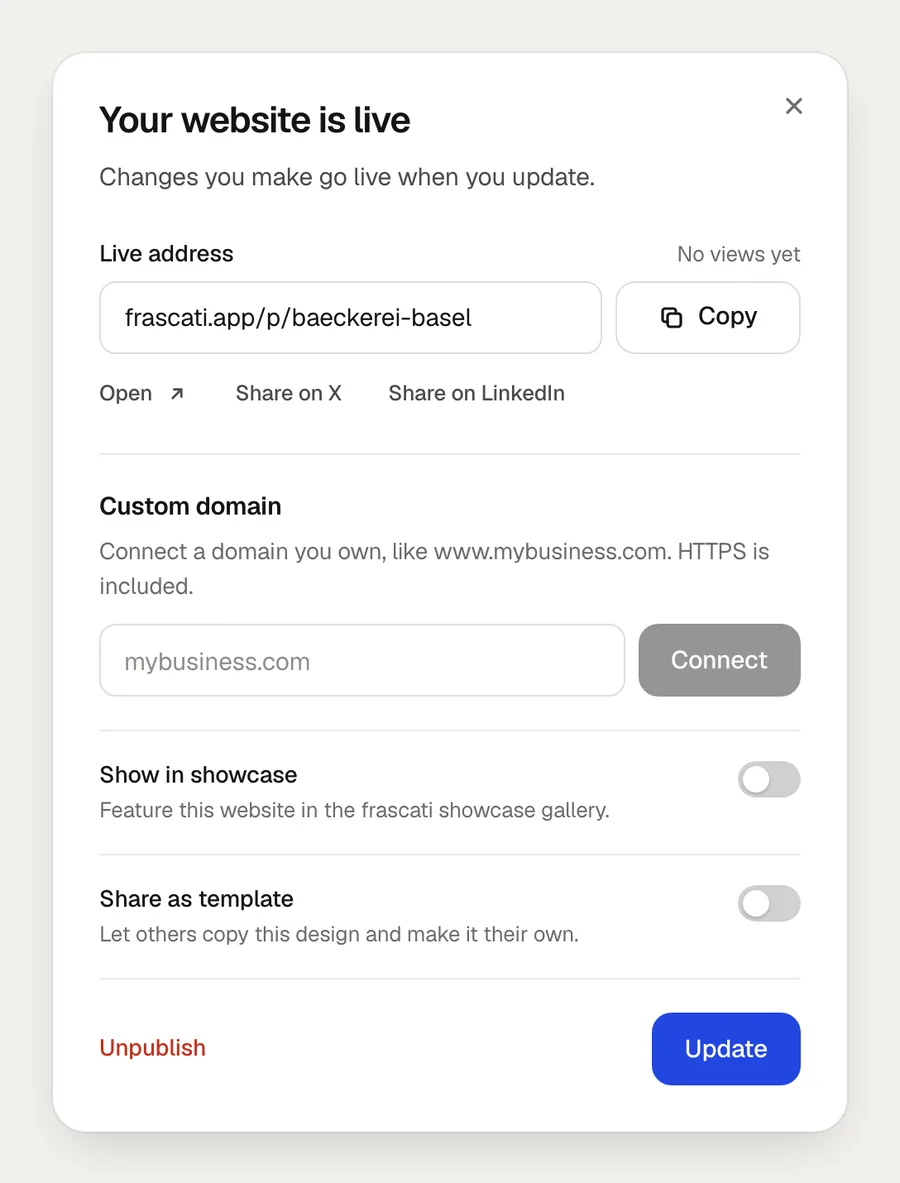
Click Publish at the top right of the editor.
Click Publish in the window. Your website is online at a frascati address like
frascati.app/p/your-namethat anyone with the link can open.Copy the address, open it or share it right from the window.
Changes you make afterwards go live when you update: open the window again (the button now says Published) and click Update. Unpublish takes the website offline.
In the same window you can connect your own domain with Pro and Business, show your website in the frascati showcase or share it as a template for others. How many websites can be online at once: Starter 3, Pro 10, Business as many as you like.
Messages from your contact form arrive by email and in the Messages tab of the editor.
Next steps
- Connect your own domain, like www.mybusiness.com.
- SEO for your website: what search engines see, and what to fix.
- Payments with Stripe: sell vouchers, products and memberships.
- Cloud tables: a menu, prices or events you update yourself.
Something missing or unclear? Write to us.