Make your first presentation
From a few sentences, your notes, a PDF or your website to finished slides with speaker notes. A presentation takes one to two minutes; then you change it in the chat or by hand and download it.
Describe it and add your material
In the box on your dashboard, switch to Presentation. Write what it is about, and add what you already have with +:
- Upload files
- PDF, Word, PowerPoint, Excel, CSV or text. PDFs can have up to 20 MB and 100 pages together, other files up to 10 MB each. You can also drop files anywhere on the box.
- Add a link
- The address of a web page, like a report or an article. frascati reads it when you start.
- From my website
- One of your frascati websites, with its texts and its look.
- Your notes
- Paste them into the box. A text of more than 1,500 characters becomes material of its own.
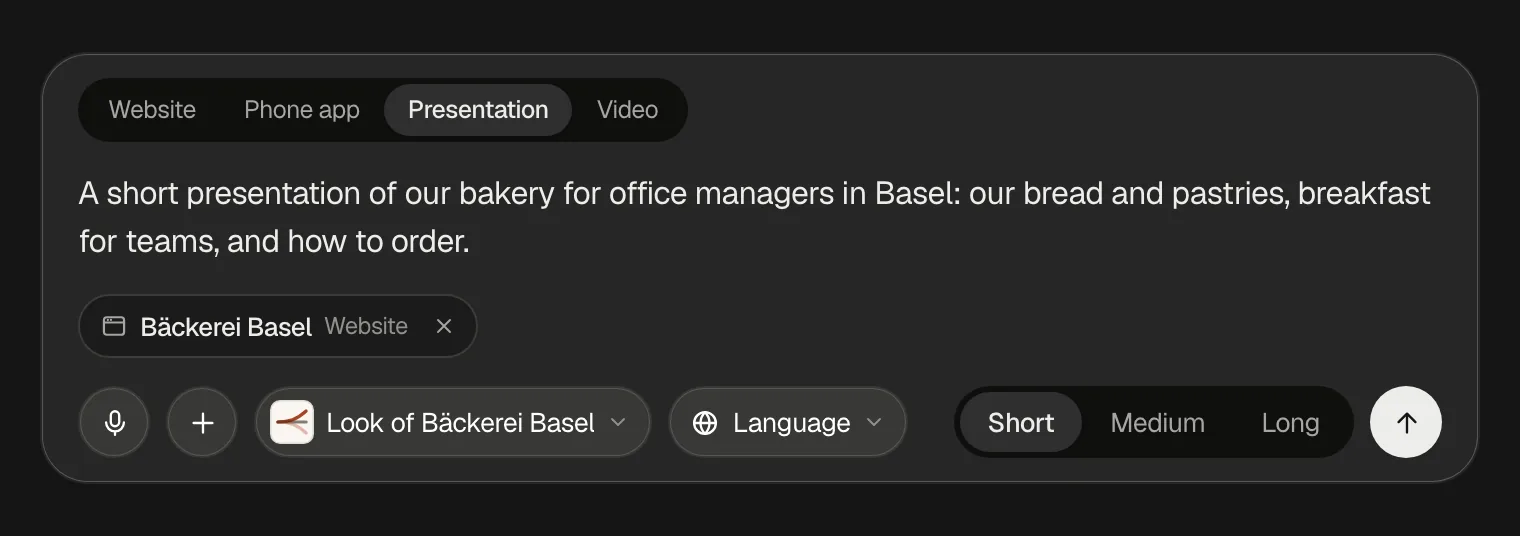
Up to 5 files, 3 links, 3 pasted texts and one website go into one presentation. With material, you need not write anything: frascati reads it first, says which parts it could not read, and writes the slides from the rest.
Say who it is for
Write who will see the slides and what they should think or do at the end. frascati builds the whole story toward that one point: an opening, the facts, and the next step on the last slide.
“For office managers in Basel: what we bake, breakfast for teams and how to order. End with our ask: a test week in November.”
Good to know
Numbers come from your material or from well-known facts, and the slide names the source. frascati invents no statistics. A chart that needs numbers you did not give shows Example values until you put in real ones with Edit text and untick it there.
Pick the look, the language and the length
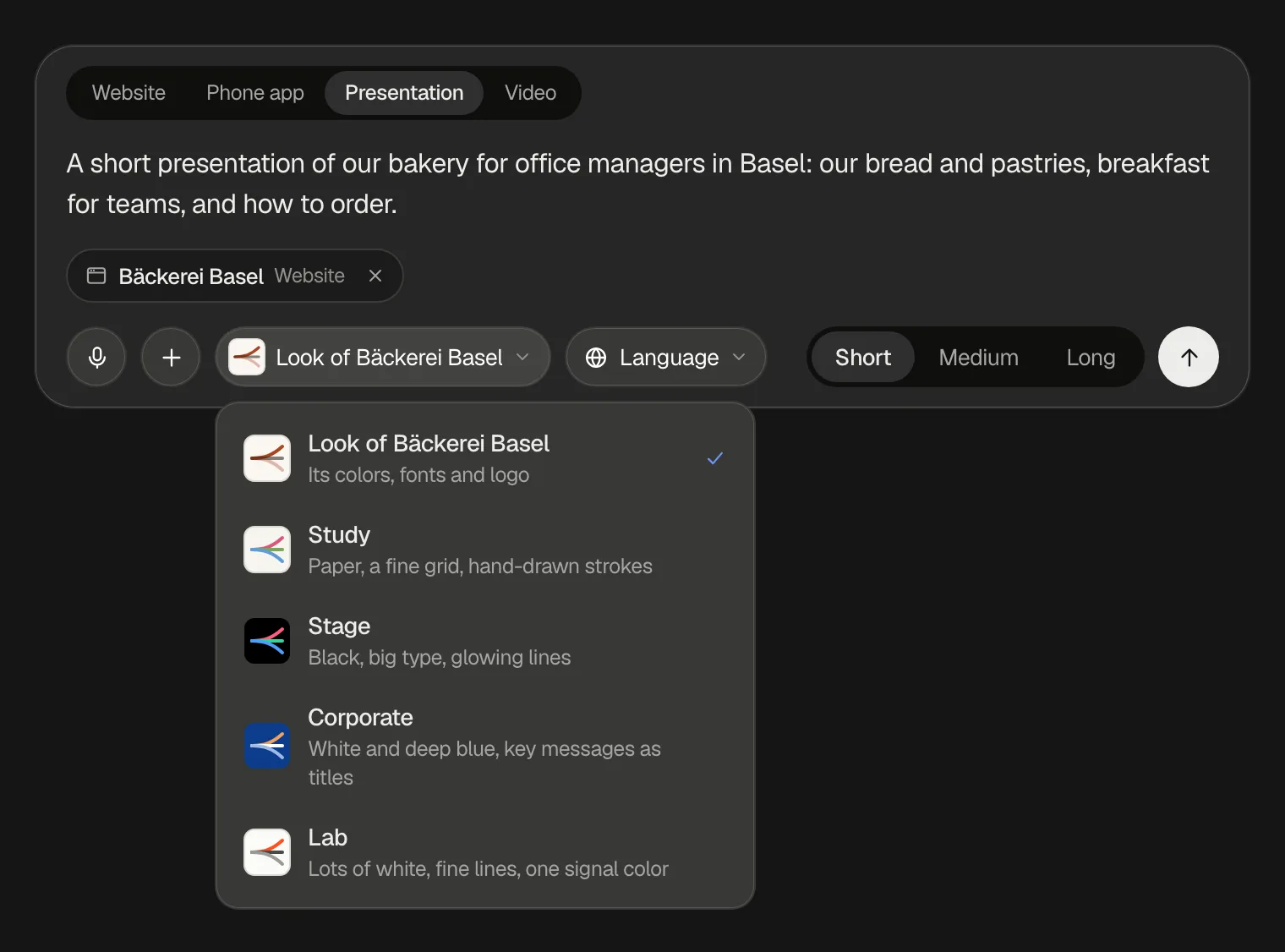
The pill with the small swatch sets the look of the slides. It starts on Study; the others are Stage, Corporate and Lab. With one of your websites as material, it changes by itself to Look of and your website's name, with its colors, fonts and logo, unless you picked a style before. You can change the look later at any time.
Language stays on Auto unless you choose one: the slides then follow your text and your material. Or choose English, Deutsch, Français, Italiano or Español.
Short, Medium or Long asks for about 6 to 8, 9 to 12 or 13 to 16 slides. Then send it with the arrow: a presentation starts right away, without Build or Plan.
Watch it being written
frascati reads the material you added, plans the whole story and then writes the slides one by one, and you see each one appear. A presentation takes one to two minutes. You can leave the page: it is written to the end and waits on your dashboard.
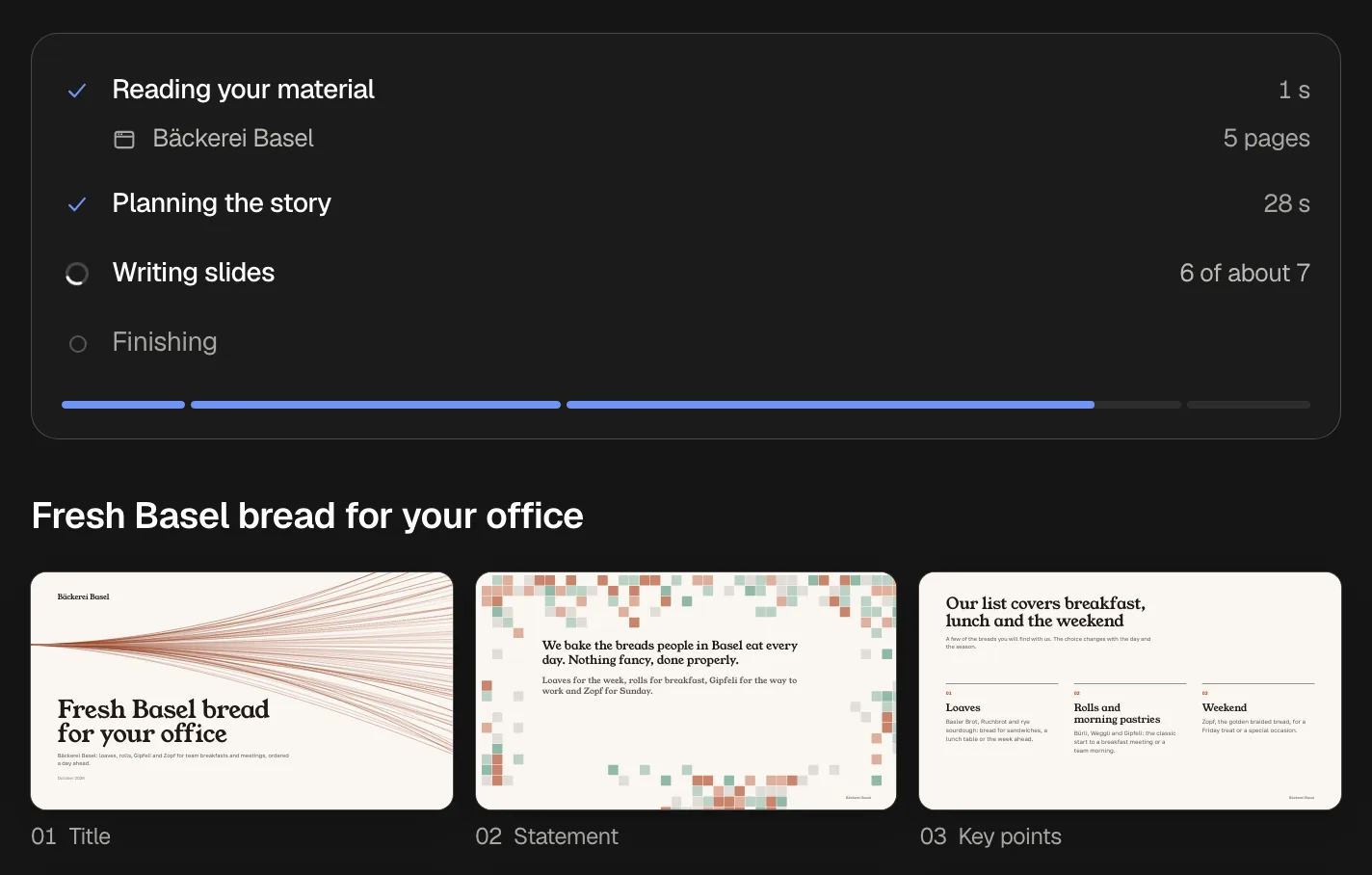
When it is done, the presentation opens in its editor.
Check the slides
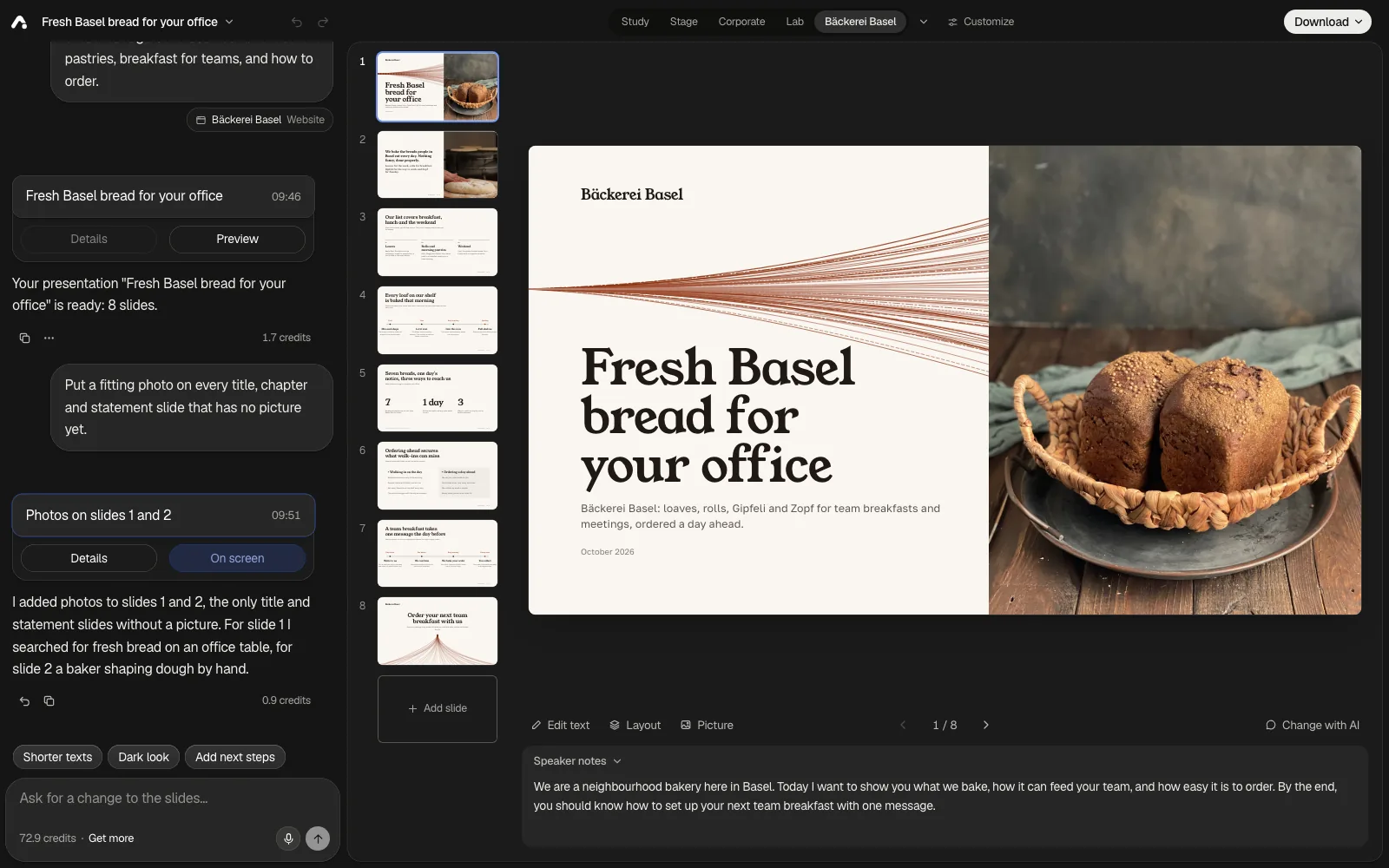
The chat is on the left, the slides on the right: the list of slides, the slide shown and, under it, its tools and its Speaker notes. Click a slide in the list to show it, or use the arrow keys. On a phone, the two buttons at the top right switch between the chat and the slides.
Under the slide you find its tools:
- Edit text
- Every title, point and number of the slide as fields, and its speaker notes. On a computer they take the place of the chat. Saving them uses no credits.
- Layout
- The slide in another layout. Instant layouts keep every word and number and use no credits; for the others, the AI writes the slide anew, for about 1 credit.
- Picture
- A photo on the right side of a title, chapter or statement slide. See Add photos.
- Change with AI
- Picks the slide for your next message in the chat.
On a computer, drag a slide in the list to move it, or open its menu with the ⋯ button on the slide or a right-click: Duplicate, Add a slide after it, Move up, Move down, Change layout…, Picture… and Delete slide. Add slide at the end of the list adds a slide after the one shown, of the kind you pick. Moving, duplicating, adding and deleting slides uses no credits.
Undo and Redo are at the top of the chat and in the menu under the presentation's name, with ⌘ Z and ⇧ ⌘ Z on a Mac or Ctrl Z and Ctrl Shift Z on Windows.
Change it in the chat
Write what should change. Name the slides, like “slide 3” or “the last slide”, or pick them: ⌘-click in the list (Ctrl-click on Windows), or Change with AI under a slide. Texts, photos, layouts, colors and fonts can all change this way.
“Make slide 3 shorter, and end with our phone number and the address of the bakery.”
frascati answers in the chat and says what it did, and the slides it changed are marked in the list for a moment. Under an answer of the AI you see the credits it used.
Suggestions above the box do common changes in one click: Shorter texts, Add photos, Add next steps, and a dark or light look. A look is set at once, without credits.
Each change from the chat, the slide tools or Customize is a version in the chat. Details shows what changed, and Preview shows an earlier version without restoring it. Restore this version, in the ⋯ menu under its answer, brings it back.
Add photos
Title, chapter and statement slides can carry a photo on their right side. Click Picture under the slide, then Upload a picture of your own, or search for photos and click one. The search finds photos on Pexels, which are free to use. Remove the picture takes it off again.
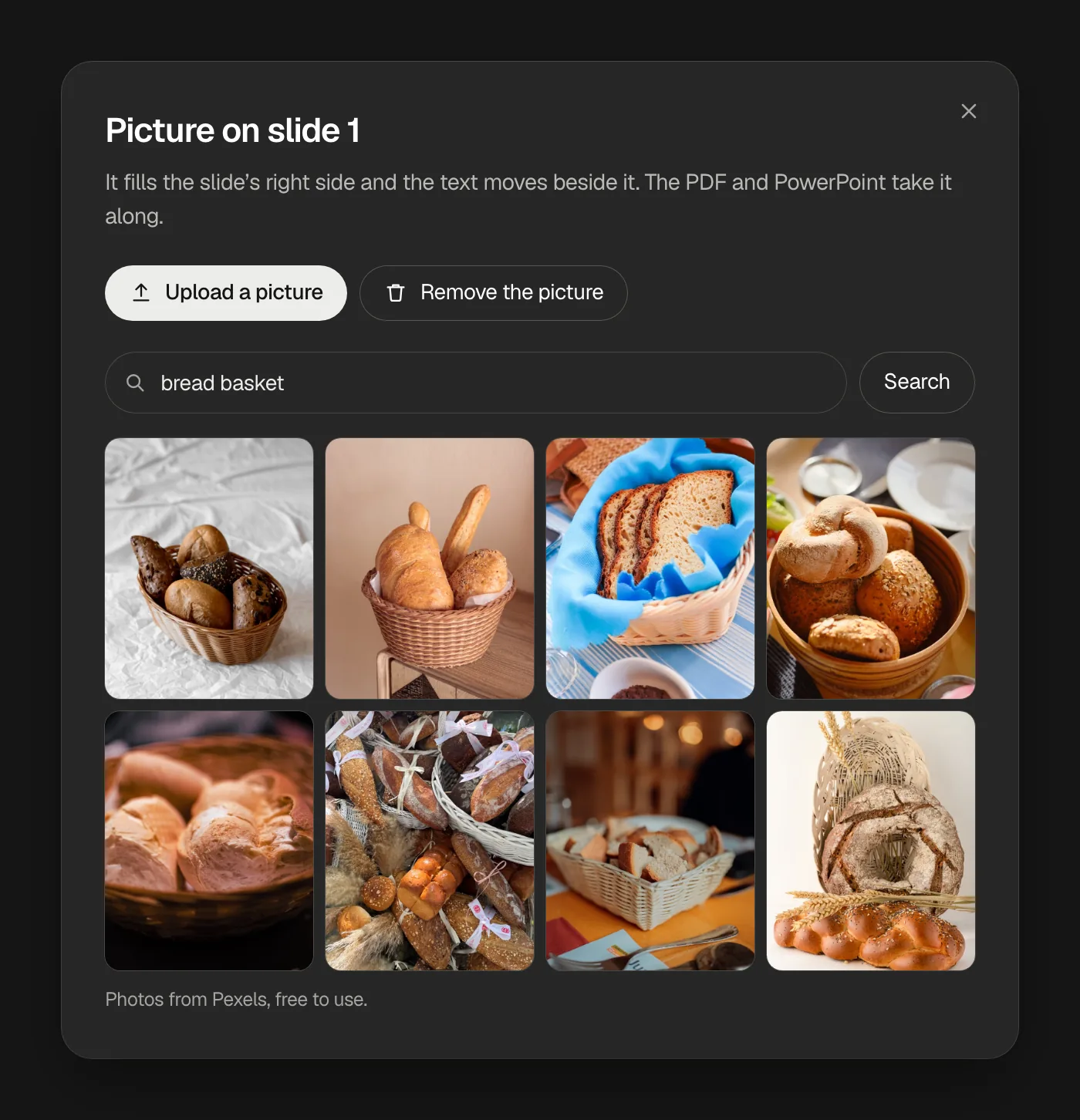
A picture uses no credits, and the PDF and the PowerPoint take it along. Or click Add photos above the chat box: the AI then puts a fitting photo on every title, chapter and statement slide that has none, billed like any change.
Change the look
Above the slides, a click on another style shows every slide in it and keeps it. My website next to the styles dresses the slides in the look of one of your websites: its name then joins the styles, and the arrow beside it picks another website or Remove the website look.
Customize makes a look of your own: a base style, an accent color, a light, dark or colored background, the fonts for titles and text, and your logo and name. Every choice shows on the slides right away, and Done saves it as one version. Changing the look uses no credits.
Download it
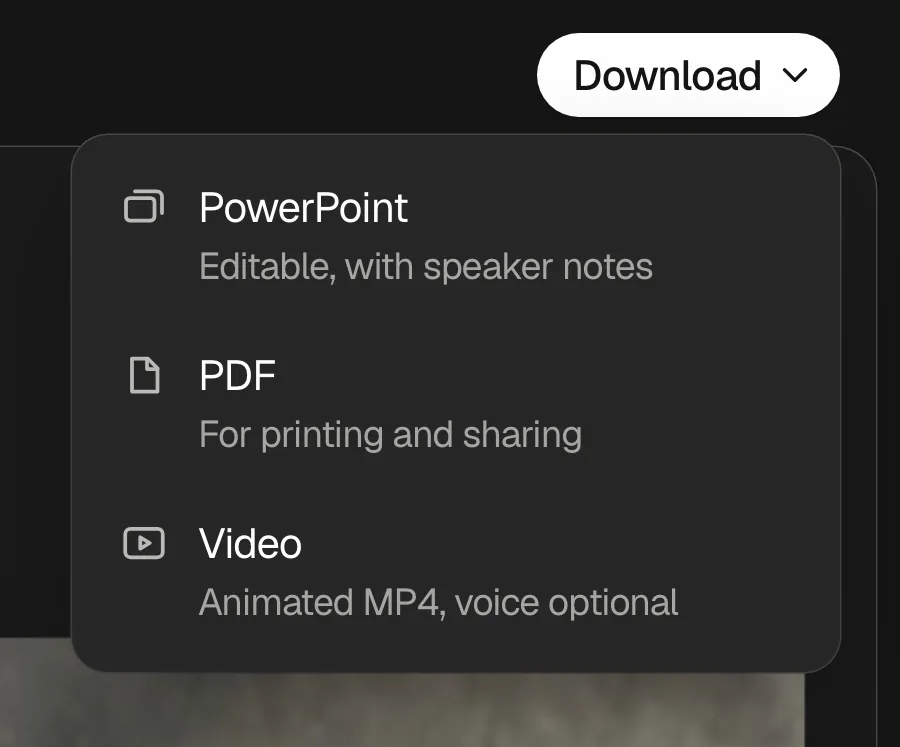
Download at the top right makes one of three files:
- PowerPoint
- Every text is a text box you can change, in PowerPoint, Keynote or Google Slides. Charts and lines come as sharp pictures, and the speaker notes as notes.
- Opens your slides in a new tab, one to a page, with your browser's print window. Choose Save as PDF there.
- Video
- The slides as an animated MP4. A voice can read your speaker notes, and each slide then stays as long as it is spoken. Choose one of four voices and listen to them first. The window shows what the voice costs before you click Create video; without a voice, the video is free.
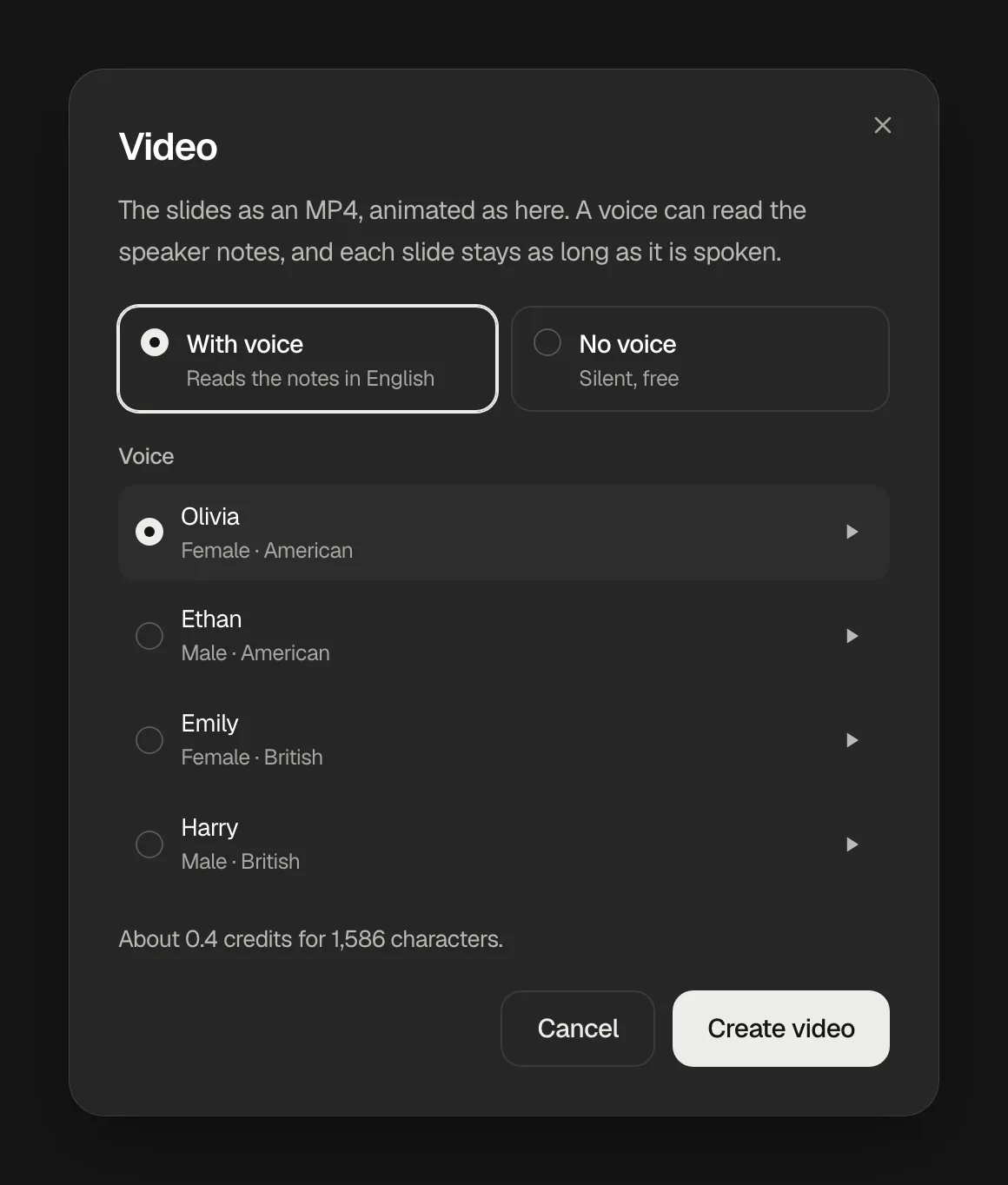
The PowerPoint and the video are made in your browser tab. You can close the video's window while it is made: it keeps going, and a small bar at the bottom shows how far it is. Another video with the same notes and voice uses no credits.
What it costs
A new presentation
- Credits
- billed by what the AI used; it needs about 3 credits left to start, more for a lot of material
A change in the chat, Add photos
- Credits
- billed by what the AI used, shown under the answer
A layout the AI writes anew
- Credits
- about 1 credit
Edit text, Picture, a style, My website, Customize, an Instant layout, moving, adding and deleting slides
- Credits
- free
The PowerPoint, the PDF and a video without a voice
- Credits
- free
A video with a voice
- Credits
- its price shows before you start
| What you do | Credits |
|---|---|
| A new presentation | billed by what the AI used; it needs about 3 credits left to start, more for a lot of material |
| A change in the chat, Add photos | billed by what the AI used, shown under the answer |
| A layout the AI writes anew | about 1 credit |
| Edit text, Picture, a style, My website, Customize, an Instant layout, moving, adding and deleting slides | free |
| The PowerPoint, the PDF and a video without a voice | free |
| A video with a voice | its price shows before you start |
If writing a presentation fails, it uses no credits. See Plans and credits.
Something missing or unclear? Write to us.